Dashboard tour
This page describes every page of the AcruxCore dashboard. It follows the sidebar, which has four groups: Workspace, Gateway, Observability, and Evaluations. Each section says what a page is for and links to the guide that uses it. To make a call and follow it through the product step by step, use the Product tour instead.
Workspace
Prompts
Prompts lists the team's prompts. An alias is a name, such as production, that
points at one version of a prompt. When you open a prompt, its aliases show at the
top, for example STAGING → v1 and PRODUCTION → v2. Six tabs sit below them:
| Tab | What it shows |
|---|---|
| Editor | The message templates and the default model. Commit new version saves the draft as a new version. |
| Preview | The current draft, rendered with sample values for its variables. |
| Versions | Every version, the aliases that point at it, a View traces link, and buttons that move an alias to it. |
| Diff | A line-by-line comparison of any two versions. |
| Audit | Every commit and alias change on this prompt, with who made it. |
| Tools | The tools connected to this prompt. |
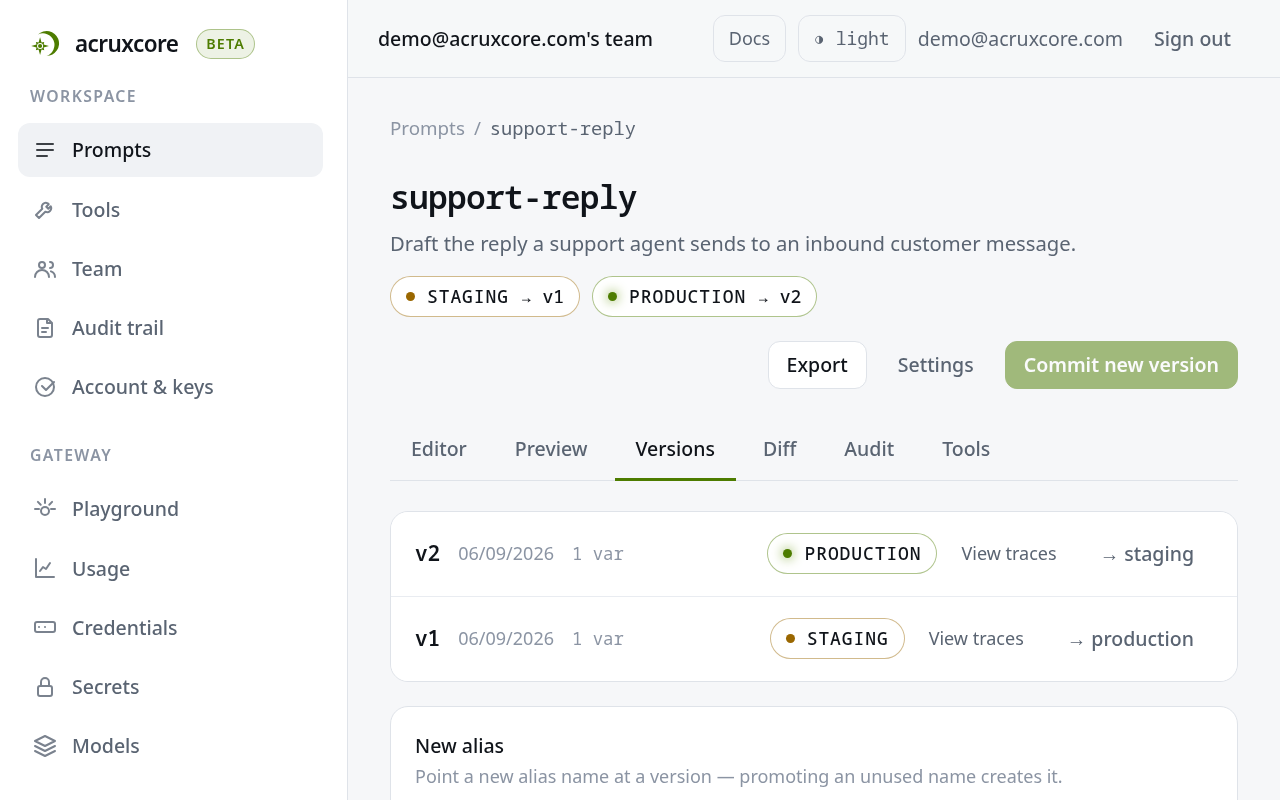
A committed version never changes. Your app asks for an alias such as production.
When you point the alias at another version, the app gets that version on its next
call, and you do not deploy your app again. See Version a prompt and
Diff, export, and import your prompt library.
Tools
Tools is the tool catalog. A tool is a function the model can call, and it has
versions and aliases in the same way a prompt does. Each tool in the catalog has a badge that says where the tool runs.
Runs in your code marks a client tool, which your application runs.
Runs on AcruxCore marks an http tool, which AcruxCore calls at a URL you
declared. The model cannot call a tool whose badge says No version yet or
Not on production, because no version of that tool is on its production alias.
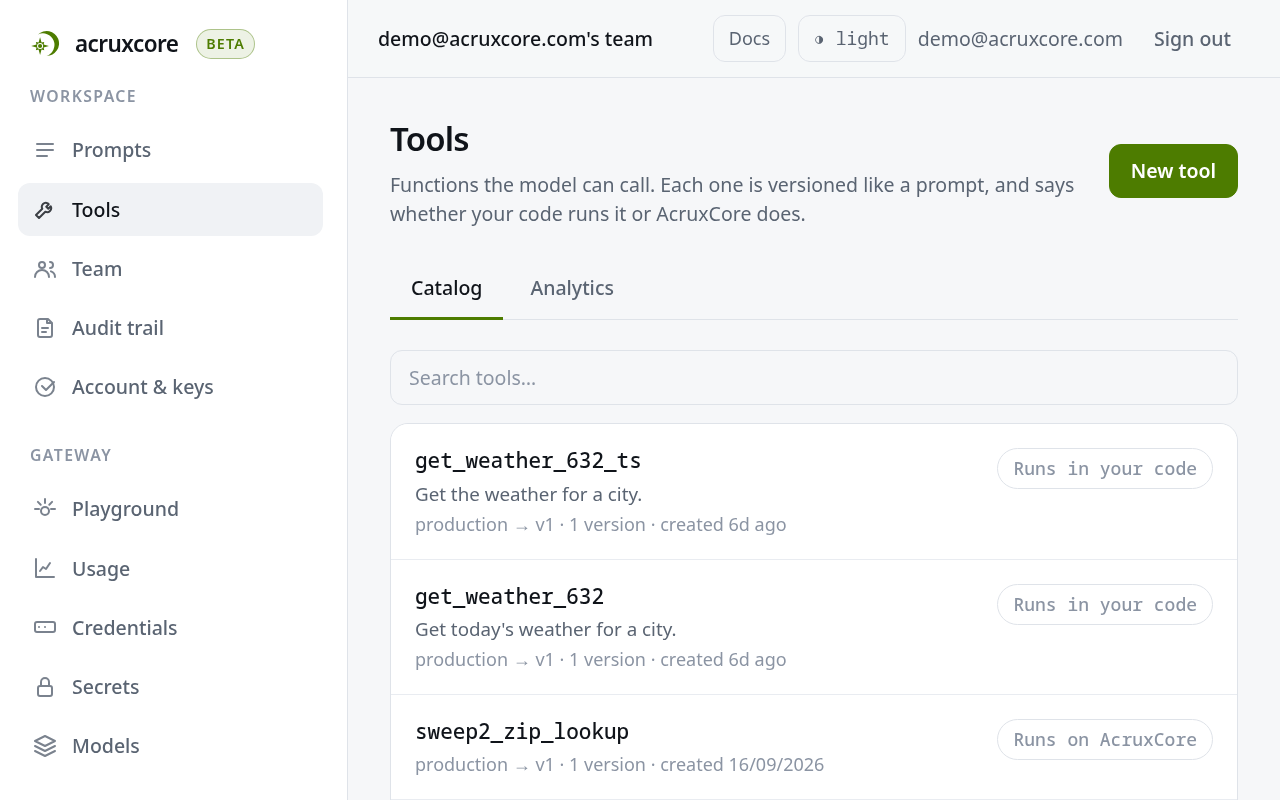
The page has two tabs. Catalog lists the tools. Analytics shows calls, error rate, and p50 and p95 latency for each tool, counted from the tool spans in your traces. Open a tool to see its Versions and Audit tabs. See Create a tool, Version and track a tool, and Connect a tool to a prompt.
Team, Audit trail, and Account & keys
Team lists the team's members. Owners and admins also see pending invites, team API keys for CI and services, and the team's recent activity. See Invite a teammate and Manage team roles and permissions.
Audit trail shows every recorded action in the team, newest first, and you can filter it by area, event, and person. Only owners and admins see this page. See Read the team audit trail.
Account & keys holds your personal API keys. It also lets you choose which emails you receive: budget alerts, connection health, evaluation run results, and online evaluation alerts.
Gateway
The gateway is the endpoint your app sends its model calls to. It resolves the model name you send, calls the provider, and records a trace of the call. The pages in this group set up the gateway and let you test a call.
Playground
Playground sends a completion through the gateway from the browser. It has two modes:
- Messages sends the messages you type to the model you pick.
- Stored prompt takes a prompt name, an alias, and the prompt's variables as JSON. The gateway fills the variables into the prompt's messages and records the prompt version on the request, so the call's cost and trace link back to that version. When a required variable is missing, the gateway rejects the call and names the missing variables.
After a call, the Gateway telemetry panel shows the provider, model, cost, cache result, latency, and token counts. See Route your app's LLM calls through the gateway.
Gateway settings
Six more pages in this group configure the gateway:
| Page | What it is for | Guide |
|---|---|---|
| Usage | Every call through the gateway, with its price. Message content is not shown here; open the trace to see it. | Set spend limits |
| Credentials | Your provider API keys, encrypted at rest. | Route calls through the gateway |
| Secrets | Encrypted values that an http tool reads as {{ secret.NAME }}. | Create a tool |
| Models | The model names the gateway serves. A request's model resolves to one of these, and the model points at a credential. | Route calls through the gateway |
| Virtual keys | Scoped keys your apps use to call the gateway, each with its own model list, rate limit, and cache setting. | Scope access with virtual keys |
| Budgets | Spend limits. The gateway refuses a request that would go over a budget before it reaches the provider. | Set spend limits |
Observability
Traces and Sessions
Traces lists every gateway completion and every run your code reported through the
SDK, newest first. You can filter the list with tag:, prompt:, and input:. A
trace is one request, and its spans are the steps inside that request, such as a model
call or a tool call. Open a trace to see its spans as a tree. Each span shows its model, provider, token counts, and
latency. When payload capture is on, a span also shows the request and response
bodies. Every trace has a Feedback panel for a thumbs up or down and a comment.
The gateway traces its own calls with no setup. Your code adds spans for tool calls and other steps through the SDK. See Trace and inspect an LLM call, Tag and filter traces, and Send OTel traces with the SDK helper.
Sessions groups traces that your code tagged with the same session id. See Using sessions and traces.
Dashboards
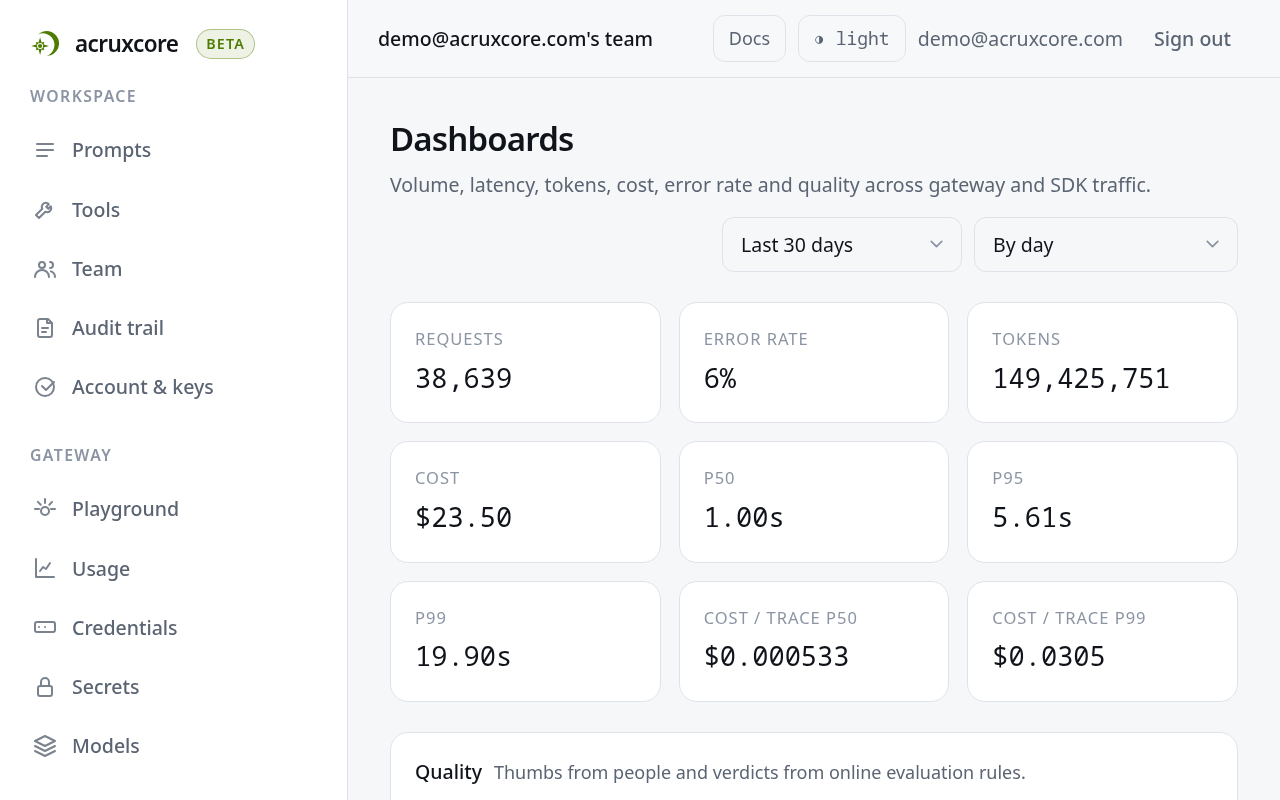
Dashboards charts request volume, latency percentiles, tokens, cost, error rate, and quality over a date range. You can group the charts by day, model, session, prompt version, or step. See View trace analytics.
Feedback
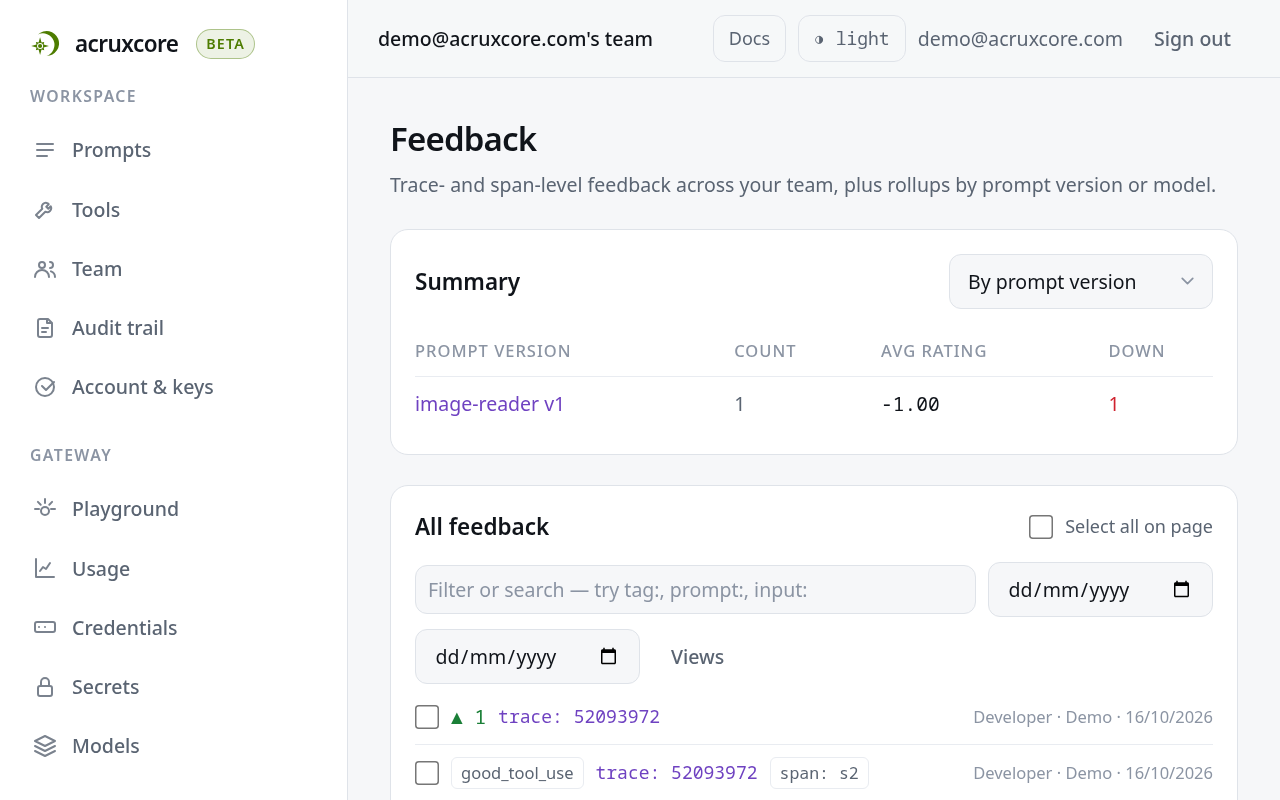
Feedback lists the feedback your team left on traces and spans. A summary at the top rolls the ratings up by prompt version or by model. When you select rows, a bar offers Improve from feedback, which drafts better prompt versions and tests them, and Create dataset, which turns the rows into a dataset. A member with the viewer role can select rows but cannot use Improve from feedback or Create dataset. See Improve a prompt from feedback.
Settings
Settings holds the Capture payloads switch for the whole team. The switch is on by default. When the switch is on, traces store the request and response bodies. Turn it off to keep message content out of your traces. See Configure trace payload capture.
Evaluations
The Evaluations group holds datasets of example inputs to test prompts against, and rules that score live traffic.
Datasets and runs
The Datasets page has two tabs, Datasets and Runs. The first tab lists your datasets. You can build a dataset from selected feedback rows, type the rows by hand, or import a CSV, JSON, or JSONL file. Open a dataset to start an experiment against it.
The Runs tab lists every evaluation and optimize run the team started, newest first. Each row shows the run's status, score, best variant, duration, and start time. See Evaluate a prompt against a dataset and Run your app as an experiment.
Rules
Rules scores live traffic automatically. A rule chooses which traces to score and the judge model that scores them. Scores then appear on live traces without anyone starting an evaluation run. See Score live traffic with an evaluation rule.
Where to next
- Product tour walks one prompt through a call, a trace, feedback, and an evaluation run.
- Core concepts explains how prompts, the gateway, traces, tools, and evaluations relate to each other.