Product tour
This page continues from Quickstart. You should already have an
account, an API key, and a registered model named support-model. On this page you
author a prompt, attach a tool to the prompt, and make streaming and non-streaming
calls. You then read the trace, leave feedback, and turn that feedback into an
evaluation run. Last, you read the record of every change you made.
1. Author the prompt
A prompt is a set of message templates that AcruxCore stores in versions. You
write a prompt once, reuse it from every caller, and change it without redeploying
anything. Open Prompts → New prompt and name the prompt support-reply. If you
already created support-reply in the Quickstart, open that prompt instead. Add a
system message and a user message, and put {{ variables }} where the input
goes:
system: You are a friendly, concise customer-support agent for {{ company }}.
        Reply warmly and help the customer resolve their issue in 2-3 sentences.
user:   {{ customer_message }}
Set Default model to support-model, then click Commit new version. The
Playground uses the default model, and so does any caller that omits its own
model. The first commit creates the production and staging aliases
automatically, and both aliases point at v1:
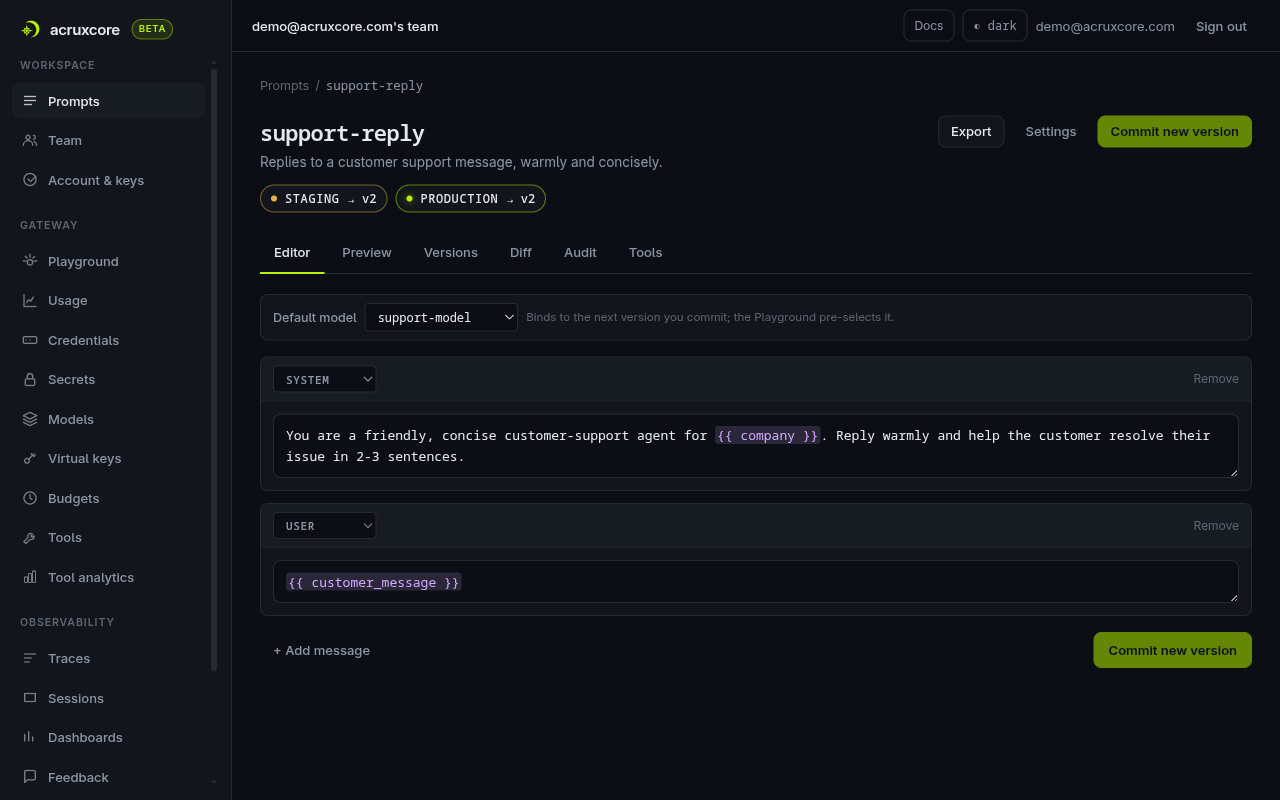
The screenshot above comes from a demo team a few commits after this step, so it
shows STAGING → v2 and PRODUCTION → v2. Your prompt starts at v1 on both aliases.
For the SDK or curl version of every step above, see Manage prompts via the SDK or Store prompts and tools via the API. For the full lifecycle of commits and aliases, see Version a prompt.
2. Attach a tool with acrux.tool
A tool is a function you let the model call. In this tour you declare the
get_weather tool in code. The acrux.tool decorator holds the name, description, and argument schema
that the model reads, next to the function itself:
- Node
- Python
import AcruxCore, { acrux } from '@acruxcoreai/sdk';
import { z } from 'zod/v4';

const getWeather = acrux.tool(
  {
    name: 'get_weather',
    description: 'Get the current weather for a city.',
    parameters: z.object({ city: z.string().describe("City name, e.g. 'London'") }),
  },
  // wttr.in needs no API key, so this body runs as written.
  async ({ city }) => {
    const res = await fetch(`https://wttr.in/${encodeURIComponent(city)}?format=j1`);
    if (!res.ok) throw new Error(`wttr.in returned ${res.status}`);
    const data = (await res.json()) as {
      current_condition: { temp_C: string; weatherDesc: { value: string }[] }[];
    };
    const current = data.current_condition[0];
    return { city, tempC: Number(current.temp_C), summary: current.weatherDesc[0].value };
  },
);
import httpx
from acruxcore import AcruxCore, acrux


@acrux.tool
async def get_weather(city: str) -> dict:
    """Get the current weather for a city.

    Args:
        city: City name, e.g. 'London'.
    """
    async with httpx.AsyncClient() as http:
        res = await http.get(f"https://wttr.in/{city}", params={"format": "j1"})
    res.raise_for_status()
    current = res.json()["current_condition"][0]
    return {
        "city": city,
        "temp_c": int(current["temp_C"]),
        "summary": current["weatherDesc"][0]["value"],
    }
Run the tool once through the tool-calling loop, and AcruxCore adds get_weather to
the tool catalog. You do not need a dashboard step to create the catalog entry:
async with AcruxCore() as hub:
    result = await hub.gateway.run_tool_loop(
        model="support-model",
        messages=[{"role": "user", "content": "What is the weather in London right now?"}],
        tools=[get_weather],
    )
    print(result.content)   # "The weather in London is currently sunny with a temperature of 24°C..."
    print(result.trace_id)
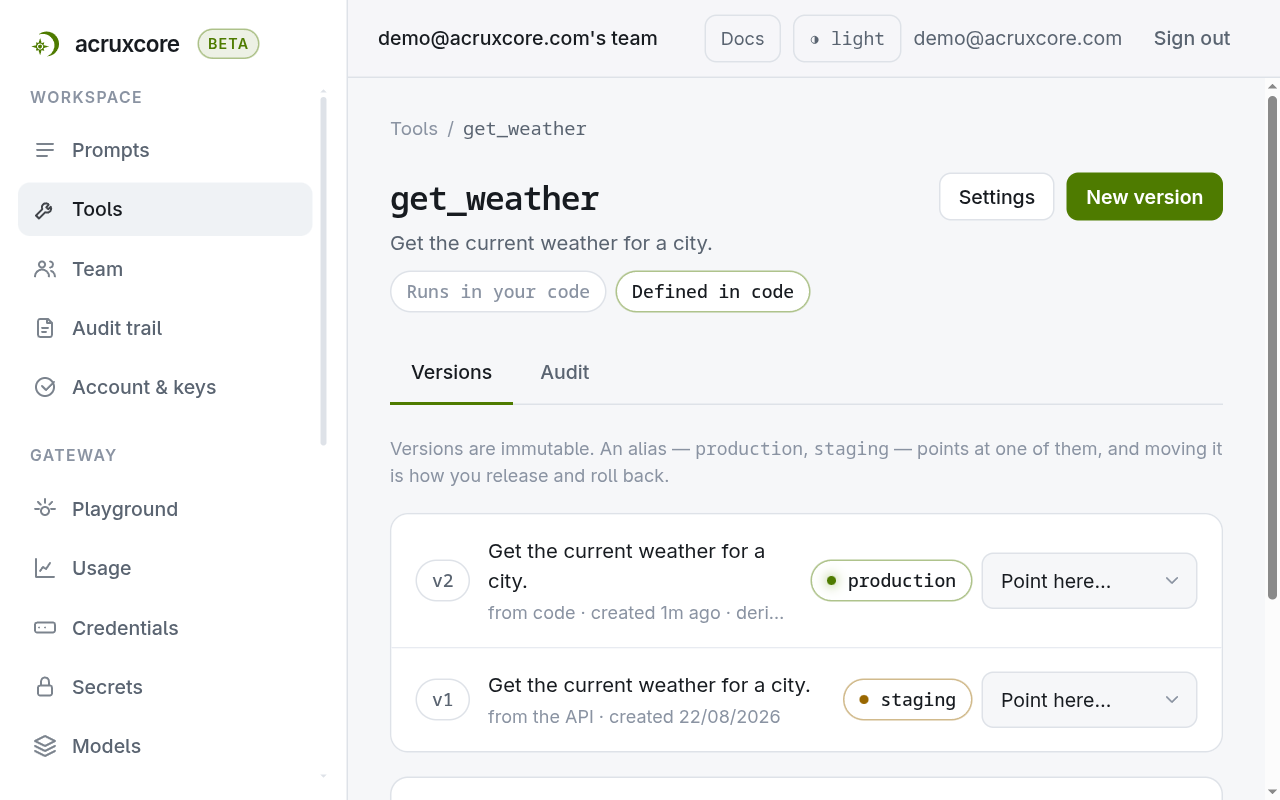
Open Tools → get_weather to see the tool with a Defined in code badge:
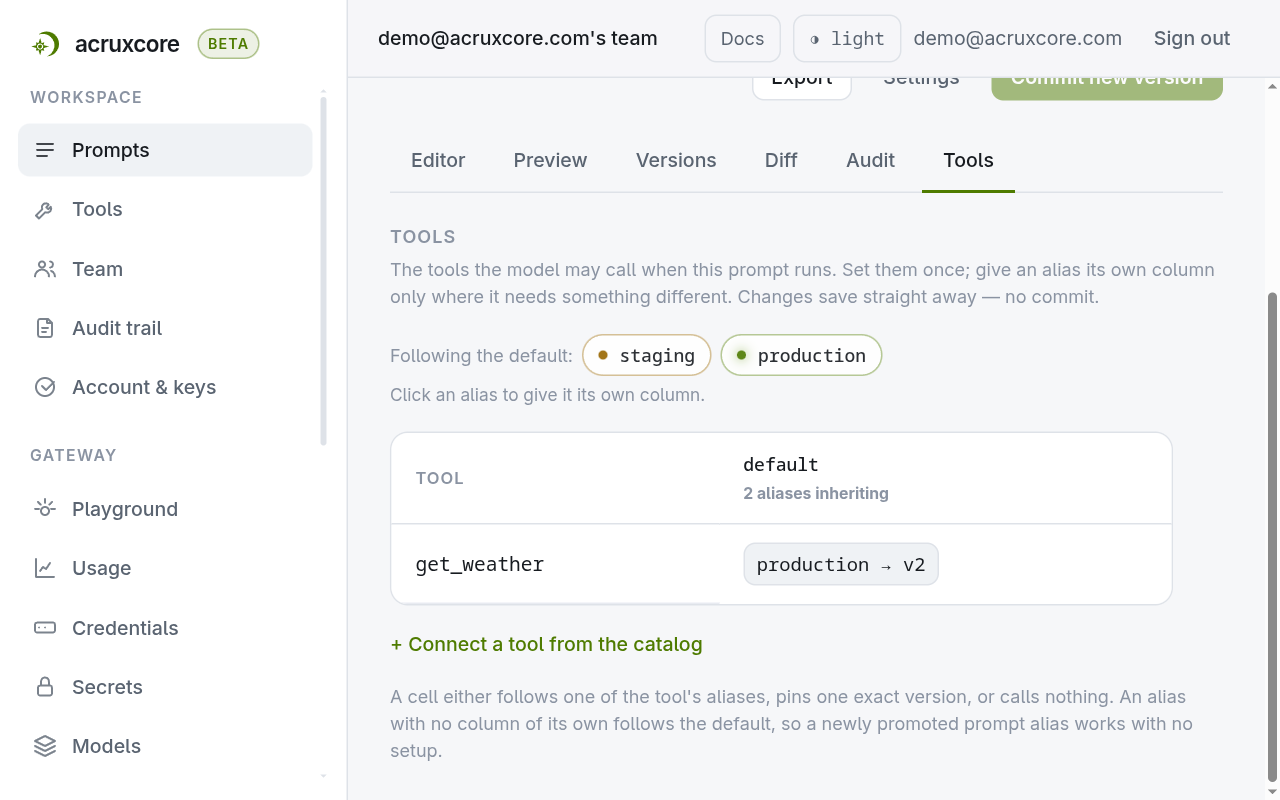
Now connect get_weather to support-reply. Open the prompt's Tools tab and
choose + Connect a tool from the catalog. The connection saves immediately. From
then on, the prompt offers get_weather to the model at every alias, and
hub.prompts.render returns the tool alongside the messages:
acrux.tool is the code-first path. To use the dashboard instead, see
Create a tool. To use curl, see
Store prompts and tools via the API,
which creates an HTTP-executor tool with POST /tools and needs no local code.
3. Make a streaming and a non-streaming call
A plain, non-streaming call gets the whole answer back in one response:
- curl
- Node (SDK)
- Python (SDK)
curl -X POST "$ACRUXCORE_BASE_URL/gateway/chat/completions" \
  -H "Authorization: Bearer $ACRUXCORE_API_KEY" \
  -H "Content-Type: application/json" \
  -d '{"model": "support-model", "messages": [{"role": "user", "content": "Say hi in one word."}]}'
{
  "id": "gen-1785952057-qwOwMLPMx0yaYnDKPFmT",
  "model": "openai/gpt-4o-mini",
  "object": "chat.completion",
  "choices": [{ "index": 0, "message": { "role": "assistant", "content": "Hello!" }, "finish_reason": "stop" }],
  "usage": { "prompt_tokens": 13, "completion_tokens": 2, "total_tokens": 15 }
}
const result = await hub.gateway.chat({
  model: 'support-model',
  messages: [{ role: 'user', content: 'Say hi in one word.' }],
});
console.log(result.content); // "Hello!"
result = await hub.gateway.chat("support-model", [{"role": "user", "content": "Say hi in one word."}])
print(result.content)  # "Hello!"
A streaming call sends the same request and returns the answer token by token. Use streaming to show the answer in a UI as the tokens arrive:
- curl
- Node (SDK)
- Python (SDK)
curl -N -X POST "$ACRUXCORE_BASE_URL/gateway/chat/completions" \
  -H "Authorization: Bearer $ACRUXCORE_API_KEY" \
  -H "Content-Type: application/json" \
  -d '{"model": "support-model", "stream": true, "messages": [{"role": "user", "content": "Count to three."}]}'
data: {"choices":[{"index":0,"delta":{"content":"One"},"finish_reason":null}]}

data: {"choices":[{"index":0,"delta":{"content":","},"finish_reason":null}]}

data: {"choices":[{"index":0,"delta":{"content":" two"},"finish_reason":null}]}

data: {"choices":[{"index":0,"delta":{"content":"three."},"finish_reason":null}]}

data: {"choices":[{"index":0,"delta":{},"finish_reason":"stop"}]}

data: [DONE]
for await (const chunk of await hub.gateway.stream({
  model: 'support-model',
  messages: [{ role: 'user', content: 'Count to three.' }],
})) {
  process.stdout.write(chunk.delta.content ?? '');
}
// One, two, three.
async for chunk in await hub.gateway.stream("support-model", [{"role": "user", "content": "Count to three."}]):
    print(chunk.delta.get("content", ""), end="", flush=True)
# One, two, three.
To watch a call live without writing code, use the streaming toggle in the dashboard. Open Gateway → Playground, turn Stream on, and send the request:
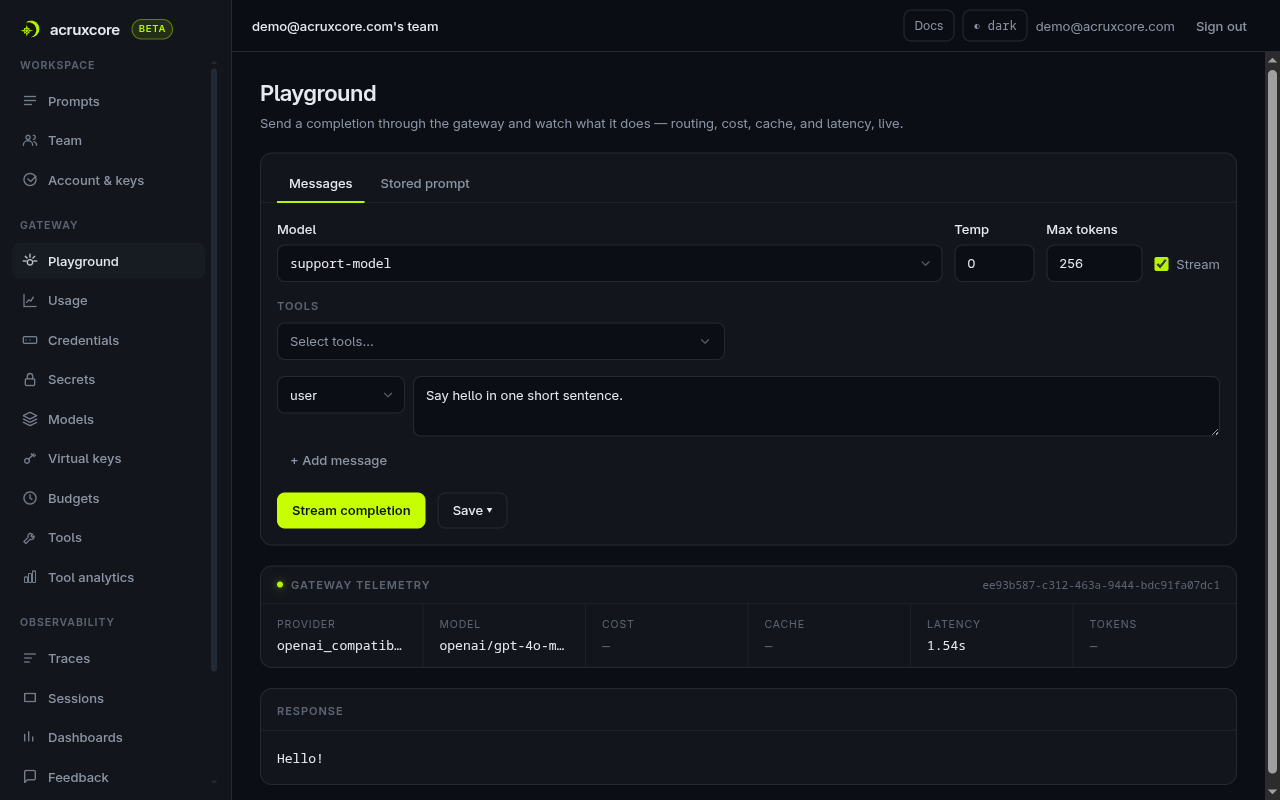
The Playground turns off the streaming toggle when a tool is attached to the call.
The tool-calling loop always sends non-streamed requests, because the loop needs the
full response to see whether the model asked for a tool. The screenshot above shows
the plain support-reply call. Section 2's code shows the tool-calling case.
4. See the trace
Every gateway call is traced automatically, and the tool-calling loop adds its own tool span to the same trace. Open Observability → Traces, find the call from section 2, and click it to open the trace:
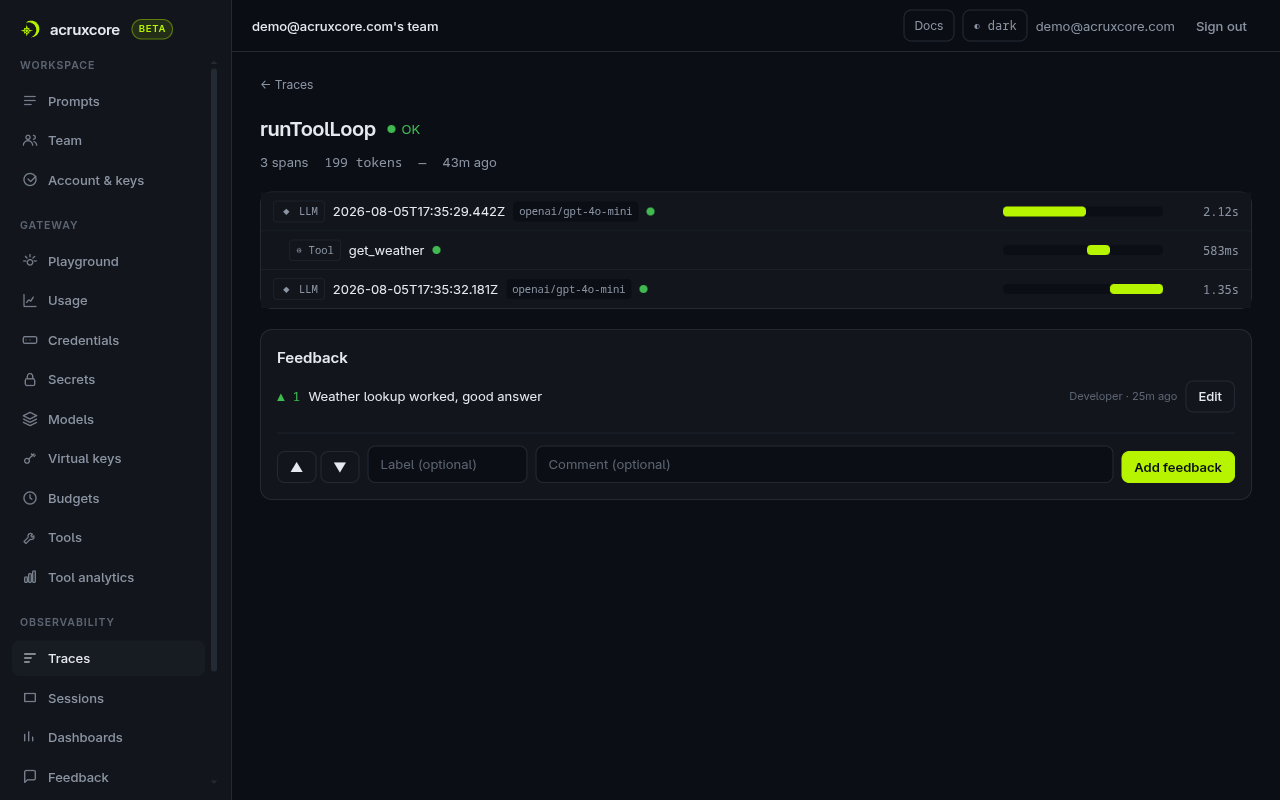
The trace has three spans. The model asks for get_weather, your code runs the
tool, and the model turns the result into an answer. All three spans share one trace
id and show token counts and per-span latency.
For the SDK or curl version, see
Chat, stream, and collect feedback with the SDK
or Trace and inspect an LLM call.
hub.traces.get(traceId) returns the same status, cost, and token counts shown here.
5. Leave feedback
On any trace, leave a thumbs up or thumbs down and an optional comment. The next section builds an evaluation from this feedback:

feedback = await hub.traces.submit_feedback(
    trace_id, rating=1, comment="Weather lookup worked, good answer",
)
See Chat, stream, and collect feedback with the SDK or Using sessions and traces for the full SDK/curl path.
6. Turn feedback into an evaluation
A dataset is a fixed set of examples that you can test against many times. In Evaluations → Datasets, build one from selected feedback rows, type rows by hand, or import a CSV or JSON file.
Then create an experiment and start a run. An experiment pairs one or two prompt
versions with a model and runs them against that dataset. AcruxCore always adds the
prompt's production alias as a baseline, so every run compares your chosen versions
against production:
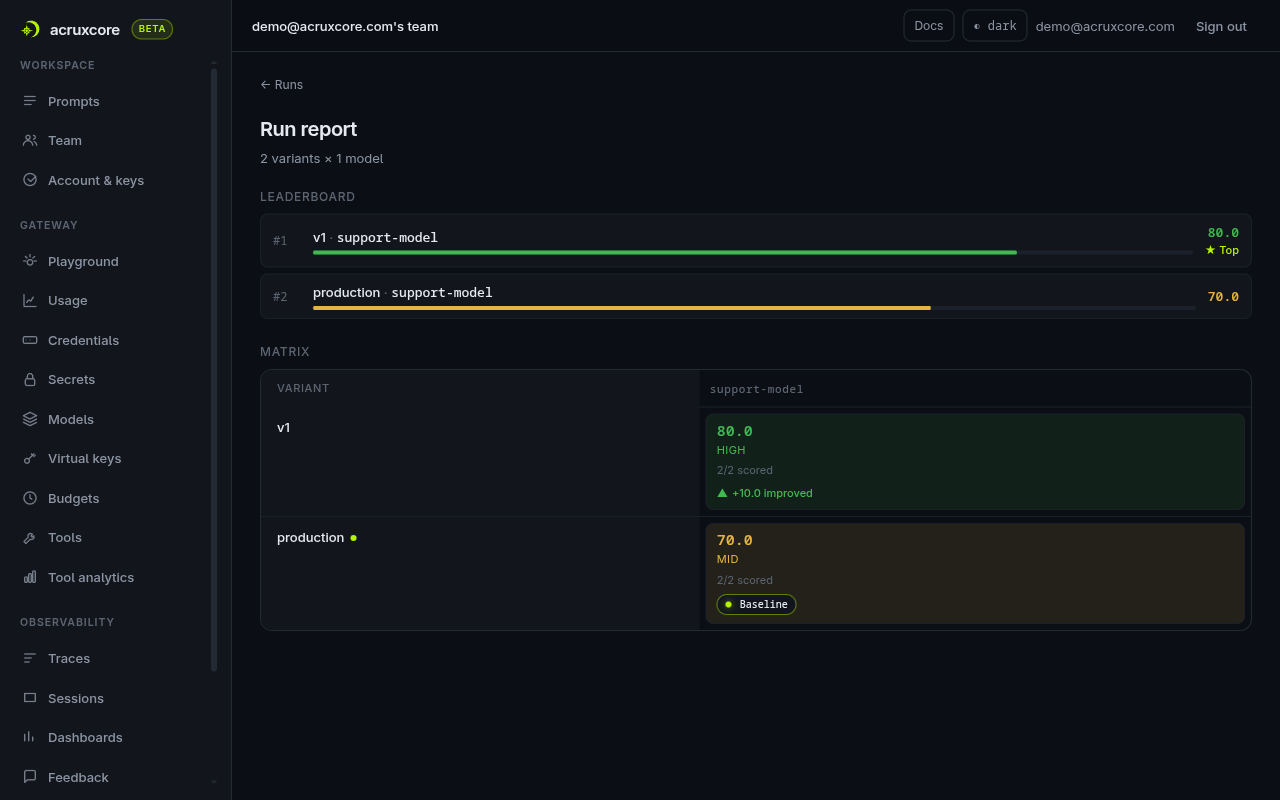
The run in the screenshot comes from the demo team, where production already points
at a later version than v1. The run compared support-reply v1 with that production
version on two weather-lookup examples. Version 1 scored 80.0, and production
scored 70.0.
Evaluate a prompt against a dataset shows every step
of this section with the SDK or curl. The guide uses datasets.build_from_feedback() /
buildFromFeedback(), experiments.create(), and runs.get_report() / getReport().
7. See who changed what
In this tour you committed a prompt and attached a tool, and both were changes to the workspace. The API key you created in the Quickstart was a change too. Team → Audit trail lists every change, newest first, with the person who made each one:
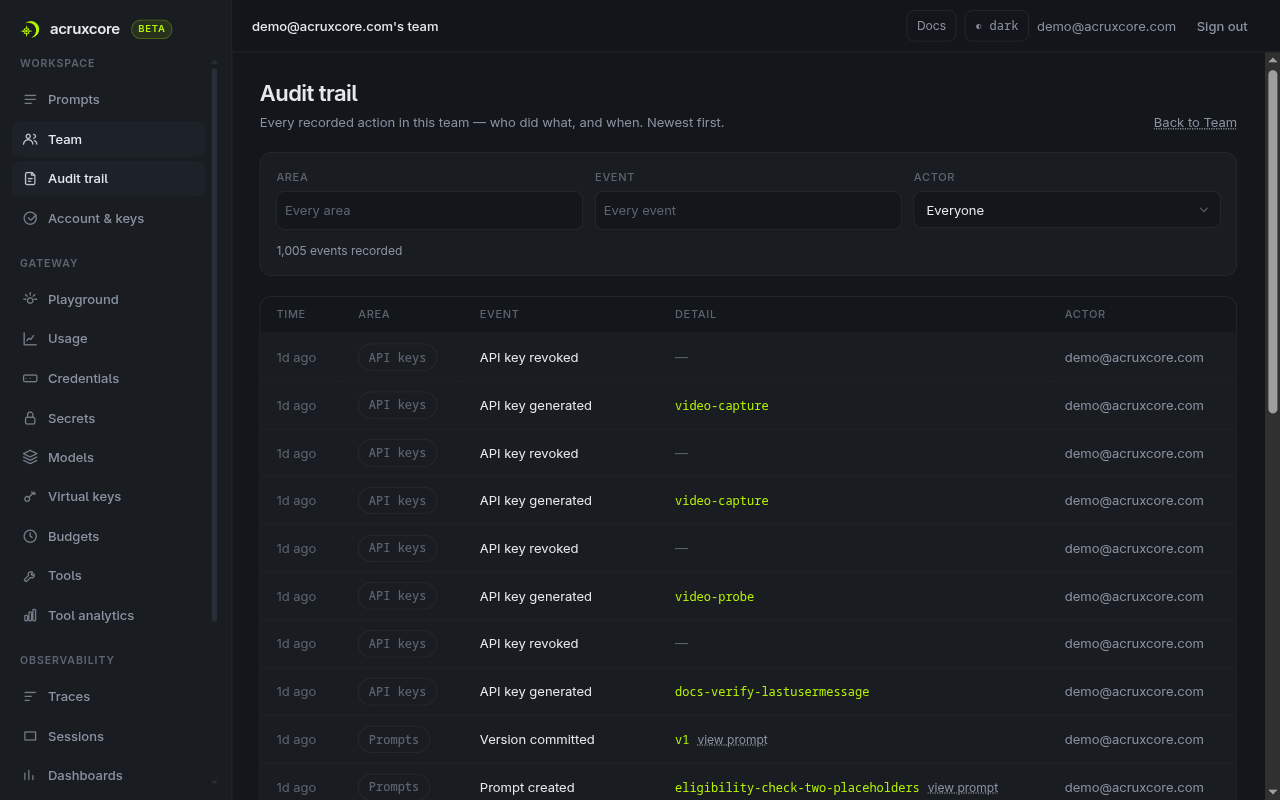
You can filter the trail by area (prompts, tools, members, keys, gateway, secrets,
evaluations, settings), by one event type, or by the person who made the change. The filters are
stored in the URL, so you can send the exact view you are reading to someone else. The
team-wide trail is readable by the owner and admin roles.
A trace is traffic your application produced. An audit event is a change a
person made. A trace answers a question such as "why was this answer wrong?" The audit trail
answers a question such as "who moved production on Tuesday?" See
Read the team audit trail.
Where to next
- Core concepts for the full mental model
- Dashboard tour for what every page in the dashboard does
- Version and track a tool
- Improve a prompt from feedback
- Tutorials: twelve agent builds, from no-code to multi-agent