Connect a tool to a prompt
What you'll build: a prompt that calls a tool from the catalog, one of its aliases calling a different build of that same tool, and a look at the tool's audit trail to see when its code last changed underneath you.
This picks up where Create a tool leaves off. That guide puts the tool in the catalog; this one decides which build of it each of your prompt's aliases calls. Running it is the step after, in Call a prompt's tools from the SDK.
How a binding works
A binding is the connection between a prompt and a tool. It stores the tool
alias to follow — production, staging, whatever the tool has — and resolves it
at call time. Moving the tool's own alias to a newer version changes what runs,
with no change on the prompt side.
Bindings hang off the prompt's aliases, not its versions. A prompt version is the template and nothing else. That means connecting a tool is a single write that takes effect on the next call: there is no version to commit and no alias to promote afterwards.
Each prompt alias either has its own binding for a tool or inherits the prompt's default binding. So a cell in the Tools tab's grid reads one of four ways:
| Cell reads | Meaning |
|---|---|
production → v3 | this alias follows the tool's production alias, which currently points at v3 |
pinned to v2 | this alias is locked to tool version 2 — no alias move reaches it |
same as default | no binding of its own; the default column applies |
not used here | this alias deliberately does not call the tool, even though the default does |
not connected | the prompt does not call this tool at all |
not used here exists because an empty cell already means same as default. It is
how you keep a billing call out of staging while production keeps it.
1. Connect the tool
Open the prompt, go to its Tools tab, and choose + Connect a tool from the catalog.
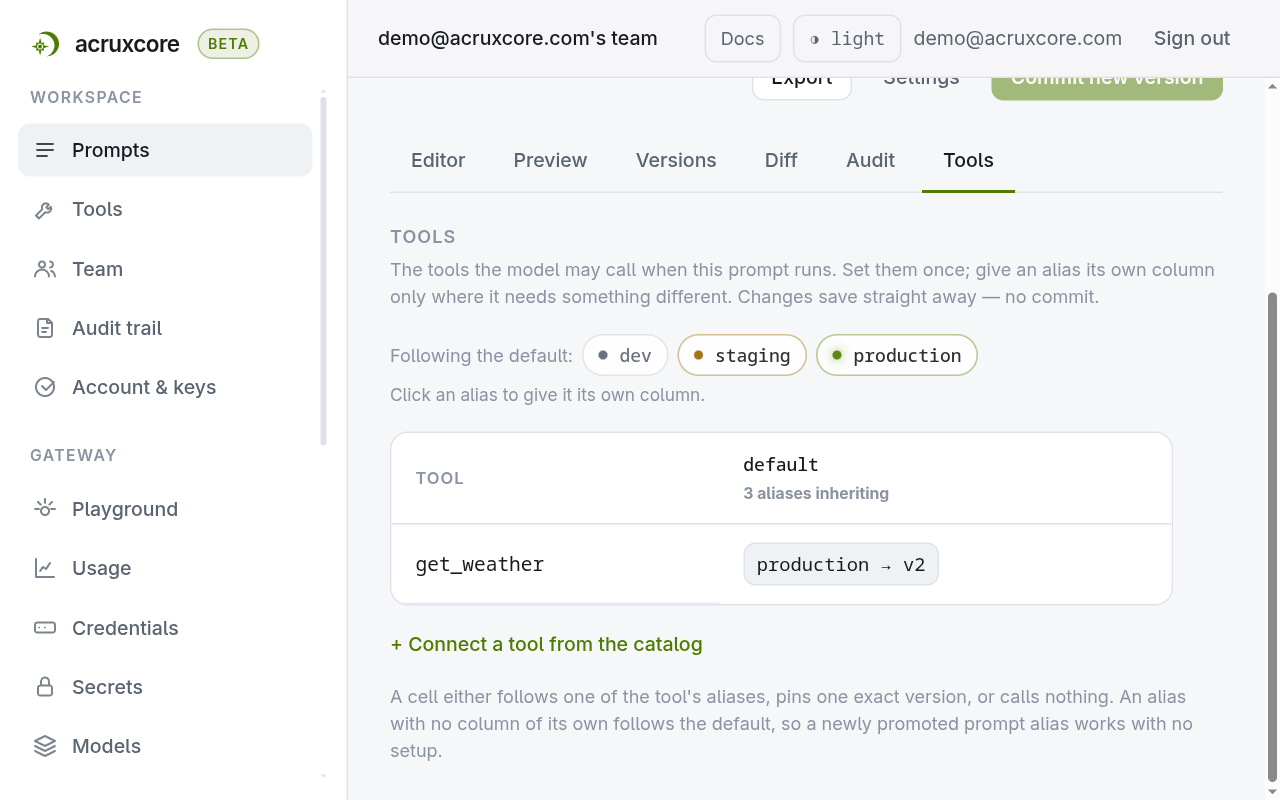
The tool lands in the default column, following its own production alias.
Every prompt alias inherits that immediately — the column header counts them
("3 aliases inheriting"), and the aliases themselves are listed as pills under
Following the default.
That is the whole common case. One row, one cell, done.
To change what the default follows, click the cell. The dropdown groups its options: every alias the tool has under Follow an alias — moves when it is promoted, every version number under Pin a version — never moves, and, on an alias column, Not for this alias under Stop calling it. A pin is the stronger promise: it never moves, so a tool commit or an alias move cannot reach it.
2. Give one alias its own tools
The alias pills under Following the default are the control: click one and
that alias gets a column of its own. Its cells start on same as default; set one and
only that alias changes. The pill disappears from the list as it moves into the
grid.
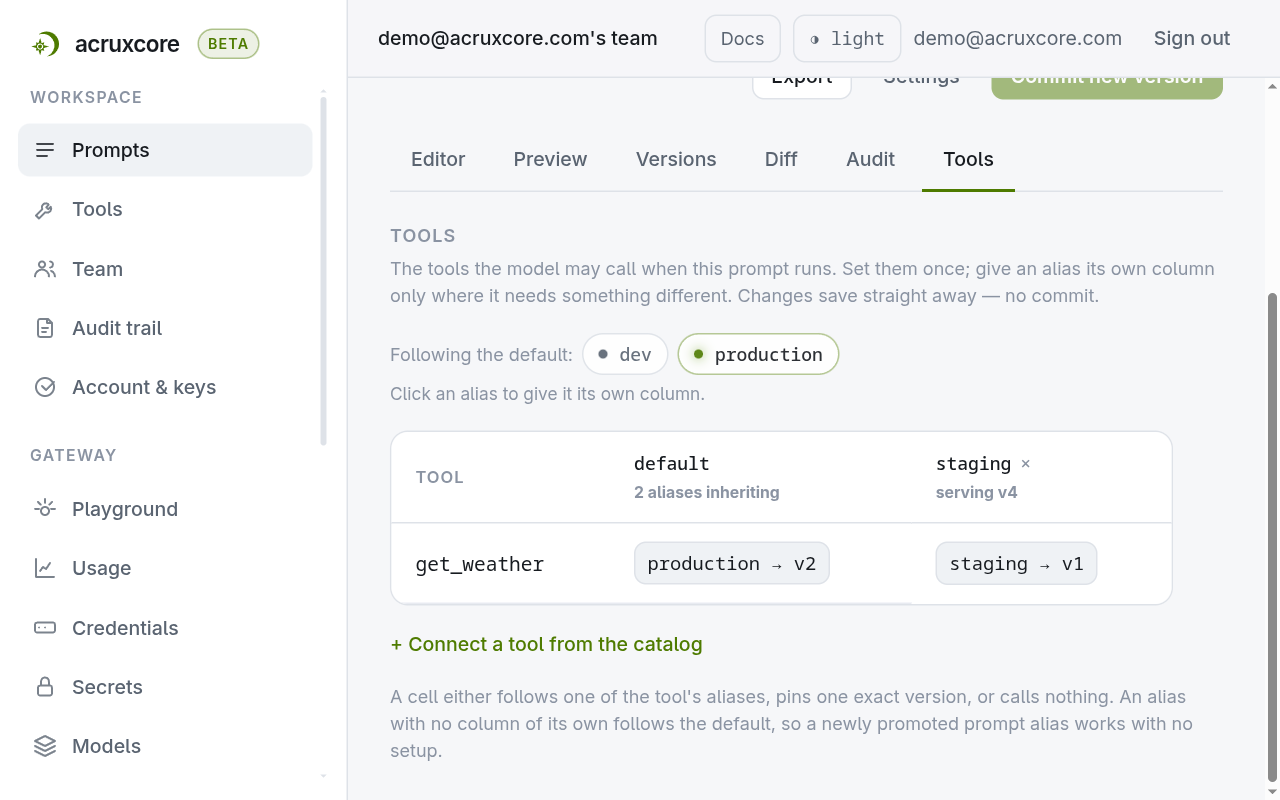
This is how a tool gets rolled out or retired. Point staging at the tool's
staging alias so it runs the build with your fix in it, while production keeps
running the tested one. Or pick Not for this alias under Stop calling it, for a tool a test run must
never call.
The two alias names are independent. Binding the prompt's production to the
tool's staging alias is exactly as valid as binding it to production — they are
different namespaces that happen to reuse the same words.
Two ways back to the default: pick Go back to the default in one cell, or use the column's × to reset that alias in full.
Under a customised alias's name you'll see serving v2. That is the prompt
version this alias currently serves — its template. It has no bearing on which
tools the alias calls.
3. Check what a call will actually use
Rendering the prompt reports its resolved tools. tools holds the OpenAI-shaped
definitions, and toolResolutions sits beside it — one entry per tool, same order
— naming the alias or pin that resolved, the tool version it landed on, and
whether the binding came from this prompt alias (source: "alias") or was
inherited from the default (source: "default").
{
  "toolResolutions": [
    { "name": "get_weather", "alias": "staging", "versionNumber": 1, "source": "alias" }
  ]
}
4. See when the tool's own code changed
A tool's Audit tab lists every version commit — including ones a code push
created via sync — and every binding set or removed against it:
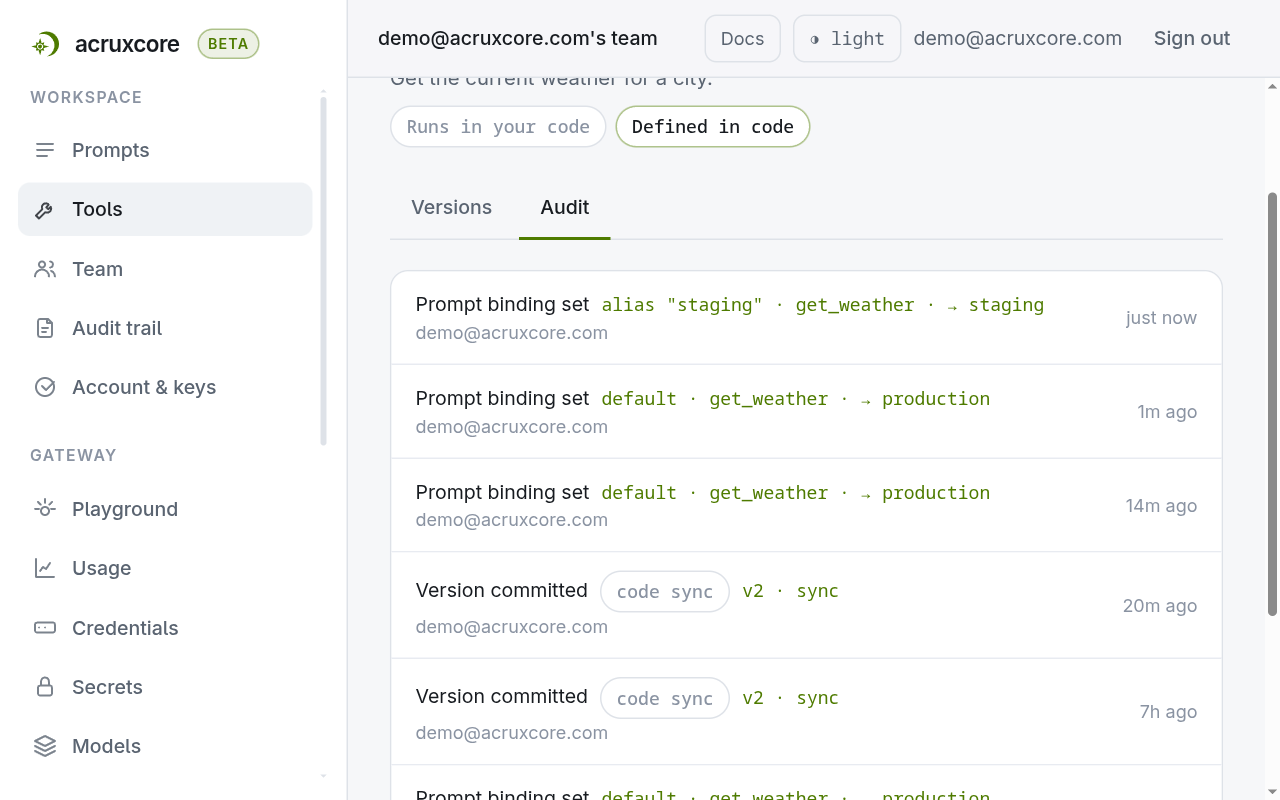
The code sync badge marks a version created by a code push (POST /api/v1/tools/:id/sync detecting the function's code changed), as opposed to a
manual commit from the dashboard or API. This is how an admin notices a tool
changed underneath an alias a prompt is relying on, without having to compare the
Versions tab against memory.
Doing this over the API
- curl
- Node (SDK)
- Python (SDK)
# The default binding — every prompt alias inherits it
curl -X PUT "$ACRUXCORE_BASE_URL/prompts/<prompt-id>/tools/<tool-id>" \
  -H "Authorization: Bearer $ACRUXCORE_API_KEY" \
  -H "Content-Type: application/json" \
  -d '{"tool_alias":"production"}'
# One alias's own binding: staging follows the tool's staging alias instead
curl -X PUT "$ACRUXCORE_BASE_URL/prompts/<prompt-id>/aliases/staging/tools/<tool-id>" \
  -H "Authorization: Bearer $ACRUXCORE_API_KEY" \
  -H "Content-Type: application/json" \
  -d '{"tool_alias":"staging"}'
# Read the whole picture: the default, plus every alias and whether it is customised
curl "$ACRUXCORE_BASE_URL/prompts/<prompt-id>/tools" \
  -H "Authorization: Bearer $ACRUXCORE_API_KEY"
# Render reports what resolved, and which binding decided it
curl -X POST "$ACRUXCORE_BASE_URL/prompts/weather-brief/staging/render" \
  -H "Authorization: Bearer $ACRUXCORE_API_KEY" \
  -H "Content-Type: application/json" \
  -d '{"variables":{"city":"Lisbon"}}'
{
  "toolResolutions": [
    {"name":"get_weather","alias":"staging","versionNumber":1,"source":"alias"}
  ]
}
import AcruxCore, { withToolOverride } from '@acruxcoreai/sdk';

const hub = new AcruxCore();
const rendered = await hub.prompts.render('weather-brief', 'staging', { city: 'Lisbon' });

// rendered.toolResolutions[0] — { name: 'get_weather', alias: 'staging', versionNumber: 1, source: 'alias' }

// One-off swap for this call only — warns, naming the binding actually configured
// on the prompt, so you don't mistake a one-off for the standing setup.
const { tools, toolRefs } = withToolOverride(rendered, { name: 'get_weather', alias: 'production' });
from acruxcore import AcruxCore, with_tool_override

hub = AcruxCore()
rendered = await hub.prompts.render("weather-brief", "staging", {"city": "Lisbon"})

# rendered.tool_resolutions[0] — ToolResolution(name='get_weather', alias='staging', version_number=1, source='alias')

result = with_tool_override(rendered, name="get_weather", alias="production")
Every binding write needs an owner, admin, or editor role. tool_alias must
already exist on the tool, and pinned_version_number must be a version it has —
both are checked at write time, so a typo fails with VALIDATION_ERROR there
rather than surfacing on a later call. Full reference: Prompt Tool Bindings and
Audit in the API Reference.
What's next
- Call a prompt's tools from the SDK — run the tool you just bound, streaming or not.
- Create a tool — where the tool this guide binds came from.
- Version and track a tool — move the alias a binding follows, and read what the tool actually cost.