Connect Claude to AcruxCore with MCP
This guide connects an AI assistant, such as Claude Code, to your AcruxCore team. Once the assistant is connected, you can ask it to list your prompts, save a new version of a prompt, put that version into production, run it and show you the record of the run. You write no code and no HTTP requests.
What MCP does
An AI assistant can only use a service it knows how to call. Without MCP, you would have to tell the assistant the address of the AcruxCore API, how to sign in and which route does what.
The Model Context Protocol (MCP) removes that step. A service runs an MCP server, and the server sends the assistant a list of the operations it offers, called tools. Each tool has a name, a description and its arguments. The assistant reads that list when it connects, and from then on it picks the right tool for each request you make.
AcruxCore runs an MCP server with 28 tools. The server signs in with your API key, so the assistant can do what your key can do, and nothing more.
The tools work on these parts of AcruxCore:
- The prompt registry stores your team's prompts and every saved version of each one.
- The gateway sends requests to model providers such as OpenAI, and it records the cost of each request.
- A trace is the record of one run: the messages, the model, the tokens, the cost and the time taken.
- The tool catalog stores the function definitions a model can call, and evaluations score a prompt against a set of test examples.
1. Create an API key
Open Account & keys and choose New key. Give the key a name you will recognise
later, such as mcp-client.
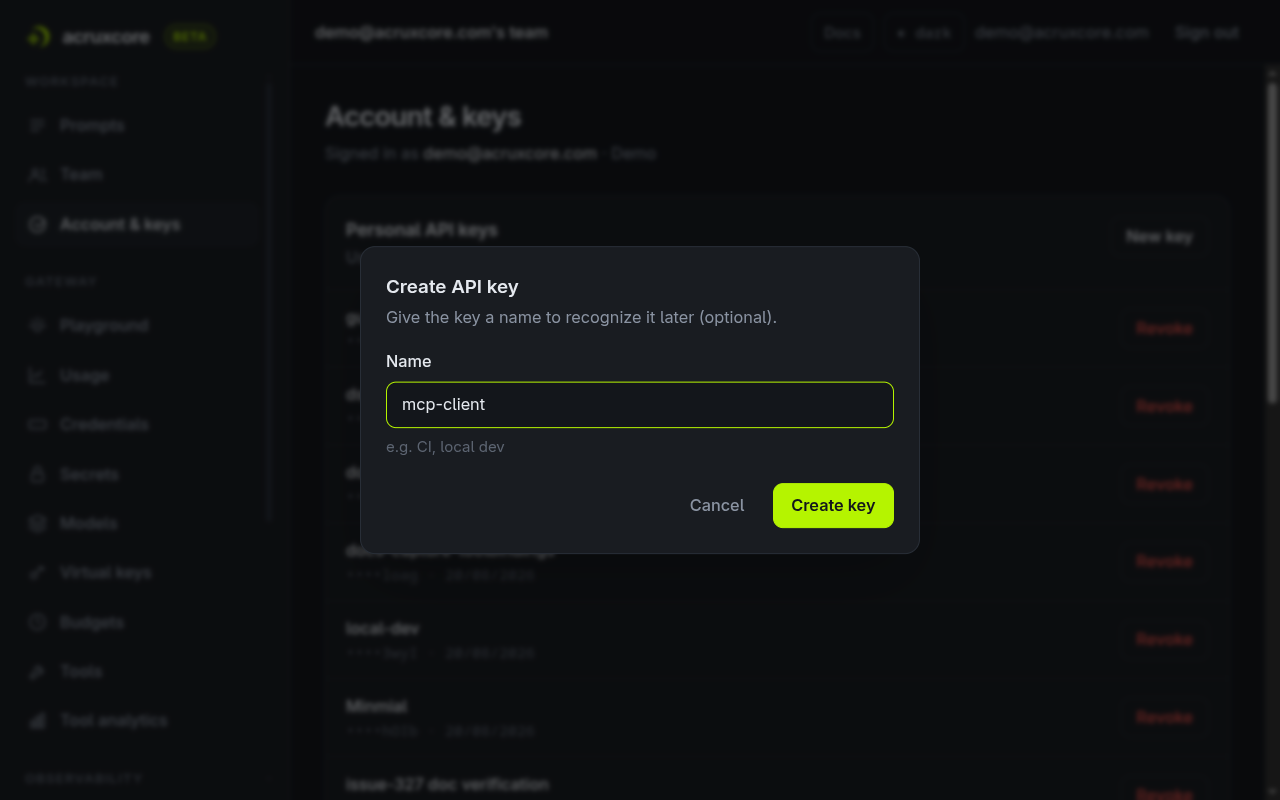
The dashboard shows the full key once. Copy it now. You cannot read the key again later. You can only revoke it and create a new one.
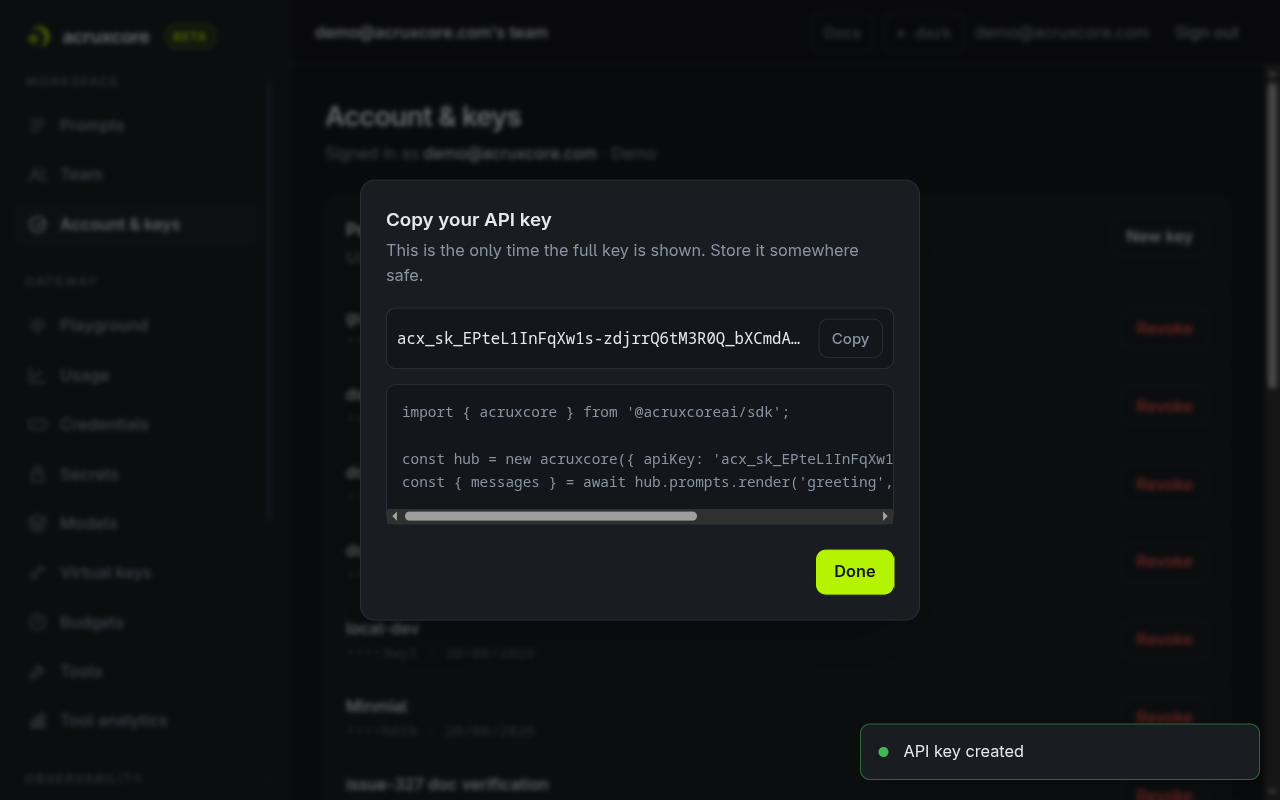
An API key has the same role in the team as the person who created it. An assistant that uses the key of a viewer can read, but it cannot save versions, move aliases or run prompts.
2. Add AcruxCore to your client
You can connect in two ways. The hosted server runs on AcruxCore, so you install nothing. The local server runs on your machine as a small Node program. Only the local server takes the options that limit which tools the assistant gets.
- Claude Code (hosted)
- Claude Code (local)
- Claude Desktop, Cursor and others
Run this once in a terminal, with your own key:
claude mcp add --transport http acruxcore https://api.acruxcore.com/api/v1/mcp \
  --header "Authorization: Bearer acx_sk_…"
Claude Code prints Added HTTP MCP server acruxcore. If you host AcruxCore yourself, use
your own host. The path is always /api/v1/mcp.
The local server needs Node 20 or newer. Run this once:
claude mcp add acruxcore -e ACRUXCORE_API_KEY=acx_sk_… -- npx -y @acruxcoreai/mcp-server
If you host AcruxCore yourself, also pass
-e ACRUXCORE_BASE_URL=https://<your-host>/api/v1.
Most clients read a JSON file with an mcpServers section. In Claude Desktop, open
Settings → Developer → Edit Config. In Cursor, edit .cursor/mcp.json. Add this
entry:
{
  "mcpServers": {
    "acruxcore": {
      "command": "npx",
      "args": ["-y", "@acruxcoreai/mcp-server"],
      "env": {
        "ACRUXCORE_API_KEY": "acx_sk_…",
        "ACRUXCORE_BASE_URL": "https://api.acruxcore.com/api/v1"
      }
    }
  }
}
Restart the client after you save the file.
To check the connection in Claude Code, run claude mcp list in a terminal, or type
/mcp inside Claude Code. The acruxcore row says Connected, and the server lists 28
tools.
3. Ask a first question
Start Claude Code and ask in plain language. In a real run, we asked:
Using the acruxcore tools: list my prompts (first 5), then list available gateway models.
Claude picked two tools, list_prompts and list_models, and called them. Then it
answered with a table of the five newest prompts and a list of the models registered in
the gateway.
You never name a tool yourself. The assistant reads the tool descriptions and picks one.
You can refer to a prompt by its name, such as support-reply. The assistant does not
need the prompt's id.
4. Change a prompt and put it into production
A prompt in AcruxCore has three parts:
- A prompt is a named container, such as
mcp-article-greeter. - A version is one saved copy of the prompt's messages. Versions are numbered 1, 2, 3 and never change after you commit them.
- An alias, such as
productionorstaging, points at one version. Your application asks for a prompt by its alias, for example "theproductionversion ofsupport-reply".
Saving a new version is called a commit. A commit does not move any alias, so your application keeps getting the old version. Moving an alias to a new version is called a promote, and a promote is the step that changes what your application gets. The MCP server sends this explanation to the assistant when the assistant connects.
In a real run, we asked Claude Code to do the whole cycle in one message:
Using the acruxcore tools:
1) commit a new version of prompt 'mcp-article-greeter' with the same messages
   as version 1 but model gpt-4o-mini-or.
2) show me the diff between version 1 and 2.
3) promote production to version 2.
4) run the prompt at production with name='Sara', topic='MCP'.
5) open its trace with get_trace using the trace id the run returned.
Claude called six tools, one after the other:
| Step | Tool | What came back |
|---|---|---|
| Read the current messages | get_prompt | 1 version; production and staging both at v1 |
| Commit | commit_prompt_version | "Committed version 2… No alias moved — promote it when you want it live." |
| Compare | diff_prompt_versions | The messages of v1 and v2 are identical; only the model changed |
| Promote | promote_prompt_alias | "Alias "production" now points at version 2." |
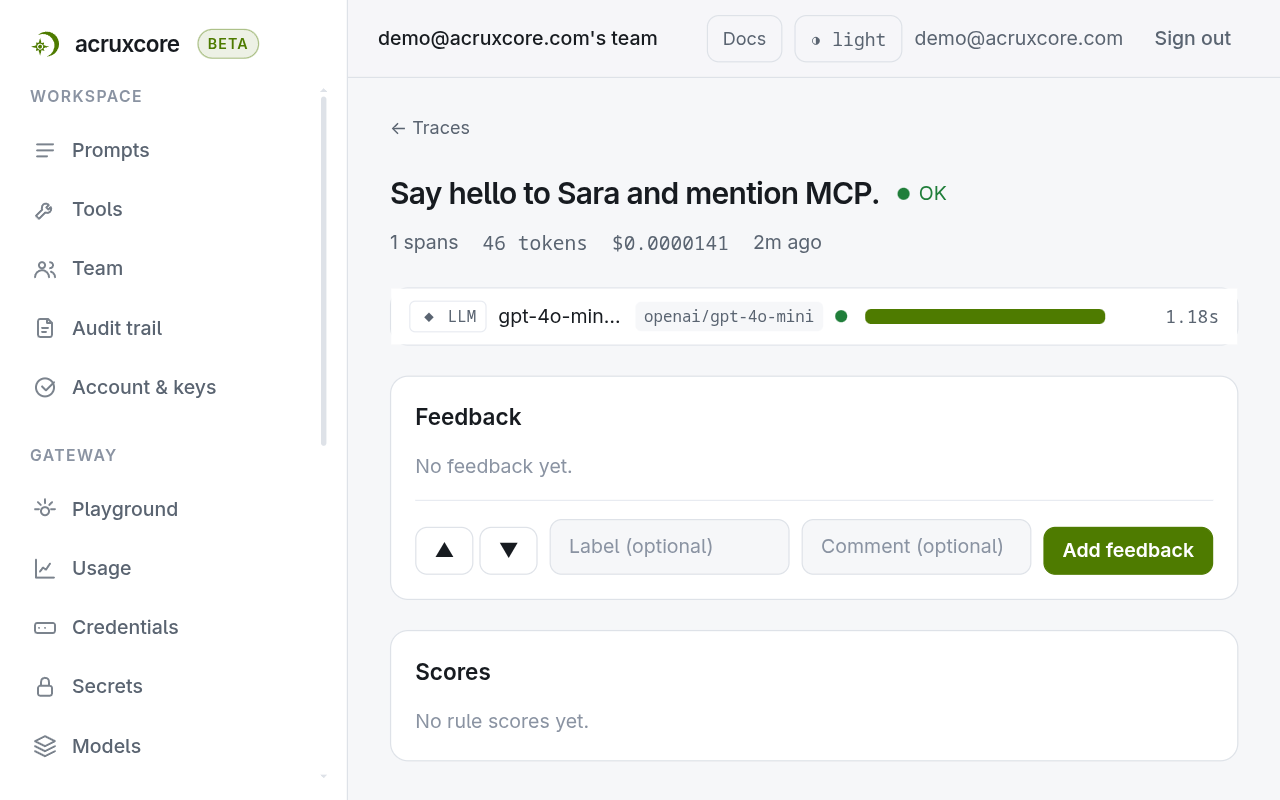
| Run | run_prompt | "Hello, Sara! I hope you're doing well and enjoying your time with MCP!" for $0.0000141 |
| Inspect | get_trace | Status ok, 1 span, 46 tokens, $0.0000141 |
run_prompt does the same work your application would do. First it finds the version
that the alias points at. Then it puts the variable values into the message text, sends
the messages to the model through the gateway, records the cost and writes a trace. The
result includes the trace id, so the assistant can open the trace in the next step.
5. Check the result in the dashboard
The assistant's calls go through the same API as the dashboard and your application. So every change it makes shows up in the dashboard.
Open the prompt. PRODUCTION points at v2 and STAGING still points at v1:
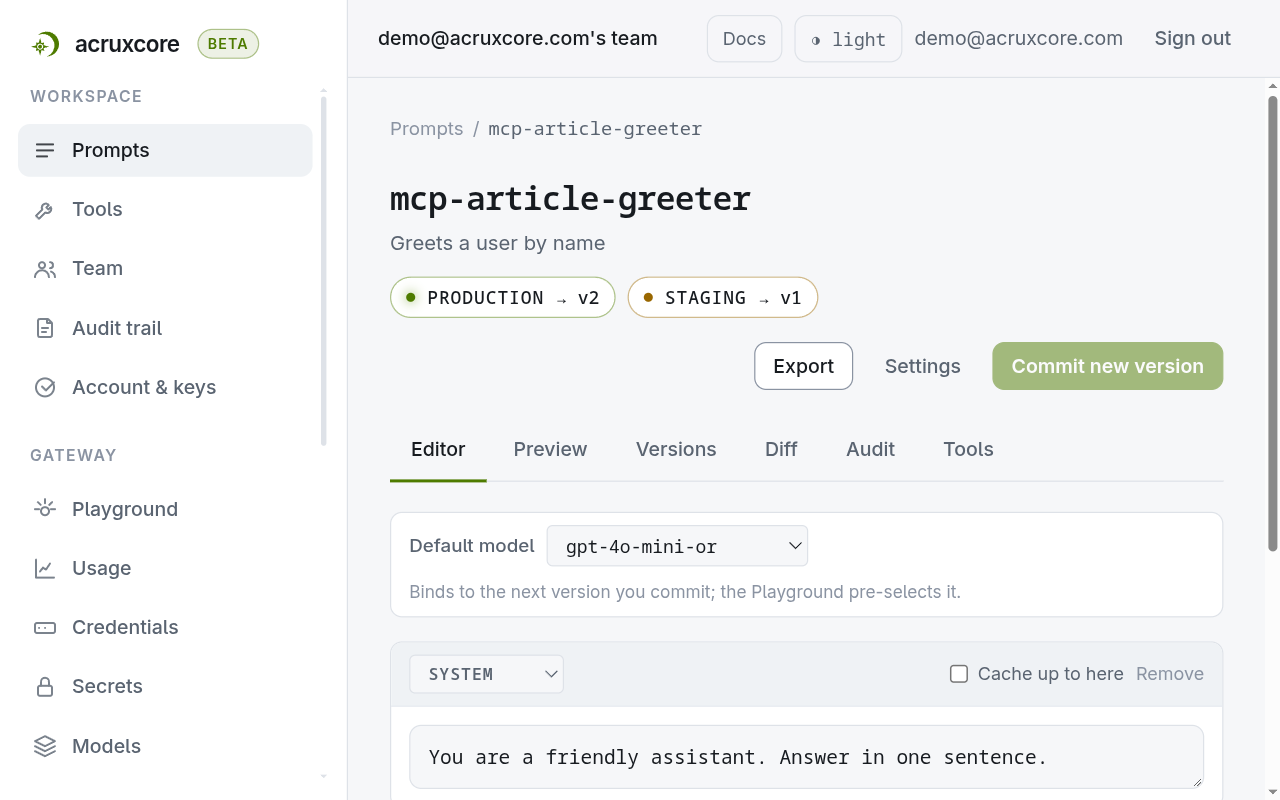
Open Traces. The run is there with its tokens, cost and model, like any other call:
If your team has set spending limits on the gateway, the cost of this run counts toward them.
Use your prompts as slash commands
MCP also has prompt templates: ready-made messages that a client offers to you. The
AcruxCore server turns each prompt in your registry into one of these templates. Each
template uses the version that the production alias points at. The prompt's variables,
such as {{ name }}, become the template's arguments.
Claude Code shows each template as a slash command named
/mcp__acruxcore__<prompt-name>. You type the argument values after the command. The
values go in the alphabetical order of the variable names. The prompt
mcp-article-greeter uses the variables name and topic, so the first value is the
name and the second is the topic:
/mcp__acruxcore__mcp-article-greeter Sara MCP
Claude Code filled name with Sara and topic with MCP and sent the rendered
message. Claude answered: "Hello Sara, it's great to have you here exploring MCP (Model
Context Protocol)!"
When you promote a new version, the slash command uses the new version from then on. You
change nothing in the client. To share a different alias, start the local server with
ACRUXCORE_MCP_PROMPT_ALIAS=staging.
A prompt can start with a system message, which tells the model how to behave. MCP templates cannot carry system messages. So the template sends the system message's text as its first ordinary message, with the text unchanged.
Limit which tools the assistant gets
The local server takes two options. The hosted server does not accept these options, so use the local server when you need either one.
--read-only removes every tool that changes something. In a real run, the read-only
server listed 17 tools. Claude could list, read, render and diff prompts, search traces
and read spend. It could not create, commit, promote or run anything. When we asked it to
create a prompt, it answered that it had no tool for that. The read-only server never
sends the assistant the tools that change data. So no request can make the assistant
call one of those tools.
claude mcp add acruxcore -e ACRUXCORE_API_KEY=acx_sk_… -- npx -y @acruxcoreai/mcp-server --read-only
--toolsets keeps only the groups you name. A shorter tool list also helps the
assistant pick the right tool.
npx -y @acruxcoreai/mcp-server --toolsets prompts,traces
Clients that only accept environment variables can set ACRUXCORE_MCP_READ_ONLY=true and
ACRUXCORE_MCP_TOOLSETS=prompts,traces instead.
The 28 tools
The tools come in five groups. Each group is a toolset you can name in --toolsets.
| Toolset | Tools |
|---|---|
prompts | list_prompts, get_prompt, render_prompt, diff_prompt_versions, create_prompt, commit_prompt_version, promote_prompt_alias |
gateway | run_prompt, chat_completion, list_models, get_gateway_usage |
tools | list_catalog_tools, get_catalog_tool, sync_catalog_tool, execute_catalog_tool |
traces | search_traces, get_trace, get_trace_analytics, list_sessions, get_session, submit_trace_feedback |
evaluations | list_datasets, get_dataset, create_dataset, add_dataset_example, run_experiment, list_experiment_runs, get_experiment_run |
No tool deletes anything. To delete a prompt, a tool or a dataset, use the dashboard or the API.
When a tool fails, the assistant receives the error as the tool's result, with the
AcruxCore error code and message. For example, if a variable value is missing, the result
has the code MISSING_VARIABLES and the names of the missing variables. The assistant reads this, and it can
fix the call and try again.
Doing this over the API
The hosted server accepts JSON-RPC messages over HTTP, so you can use curl to check a key
and a connection before you set up a client. Send Accept: application/json, text/event-stream on every
request. After initialize, also send MCP-Protocol-Version.
- curl
- stdio
curl -X POST "$ACRUXCORE_BASE_URL/mcp" \
  -H "Authorization: Bearer $ACRUXCORE_API_KEY" \
  -H "Content-Type: application/json" \
  -H "Accept: application/json, text/event-stream" \
  -d '{"jsonrpc":"2.0","id":1,"method":"initialize","params":{"protocolVersion":"2025-06-18","capabilities":{},"clientInfo":{"name":"curl","version":"1.0"}}}'
{
  "result": {
    "protocolVersion": "2025-06-18",
    "capabilities": {
      "tools": { "listChanged": true },
      "prompts": { "listChanged": false },
      "resources": { "listChanged": true }
    },
    "serverInfo": { "name": "acruxcore", "title": "AcruxCore", "version": "0.1.0" }
  },
  "jsonrpc": "2.0",
  "id": 1
}
Then call a tool the way a client would:
curl -X POST "$ACRUXCORE_BASE_URL/mcp" \
  -H "Authorization: Bearer $ACRUXCORE_API_KEY" \
  -H "Content-Type: application/json" \
  -H "Accept: application/json, text/event-stream" \
  -H "MCP-Protocol-Version: 2025-06-18" \
  -d '{"jsonrpc":"2.0","id":2,"method":"tools/call","params":{"name":"list_prompts","arguments":{"limit":2}}}'
The result is one text block. The block starts with a summary line, and the JSON follows.
{
  "result": {
    "content": [
      { "type": "text", "text": "Showing 2 of 23 prompts (page 1).\n\n{ \"data\": [ … ], \"total\": 23, \"page\": 1, \"limit\": 2 }" }
    ]
  },
  "jsonrpc": "2.0",
  "id": 2
}
The local server reads newline-separated JSON on stdin and writes its answers to stdout. Log lines go to stderr, so they never mix with the protocol messages.
printf '%s\n%s\n%s\n' \
 '{"jsonrpc":"2.0","id":1,"method":"initialize","params":{"protocolVersion":"2025-06-18","capabilities":{},"clientInfo":{"name":"probe","version":"1.0"}}}' \
 '{"jsonrpc":"2.0","method":"notifications/initialized"}' \
 '{"jsonrpc":"2.0","id":2,"method":"tools/call","params":{"name":"list_prompts","arguments":{"limit":1}}}' \
 | npx -y @acruxcoreai/mcp-server --toolsets prompts,traces --read-only
The first line on stderr lists what the server registered:
[acruxcore-mcp] 9 tool(s) from toolsets [prompts, traces] (read-only) against https://api.acruxcore.com/api/v1
What's next
- Version a prompt explains versions and aliases in more detail, and how a promote ships a change.
- Scope access with virtual keys shows how to create a gateway key that can use only certain models, with a rate limit.
- MCP Endpoint in the API Reference lists every request and response of the hosted server.