Evaluate a prompt against a dataset
What you'll build: a dataset made from real feedback or from a test set you already keep, an experiment that runs one or more (version × model) combinations across it, and a report comparing them — so "did this prompt change actually help?" has a data-backed answer.
Experiment runs are processed asynchronously by the AcruxCore worker process.
The API calls below return immediately with a queued status; the worker performs
the actual gateway calls and scoring in the background.
1. Collect feedback
If you already have a test set in a CSV or JSON file, skip to
step 2, from a file. Otherwise, start from signal on real traffic. On any trace (or span), leave a
thumbs up/down and an optional comment — that comment becomes the example's grading
criteria later. Feedback is only eligible for a dataset if its source trace
captured payloads (so the prompt variables were stored). If your app renders the
prompt itself and sends prompt_version_id with its own messages, send the values it
rendered with as variables as well — those variables are what an example replays.
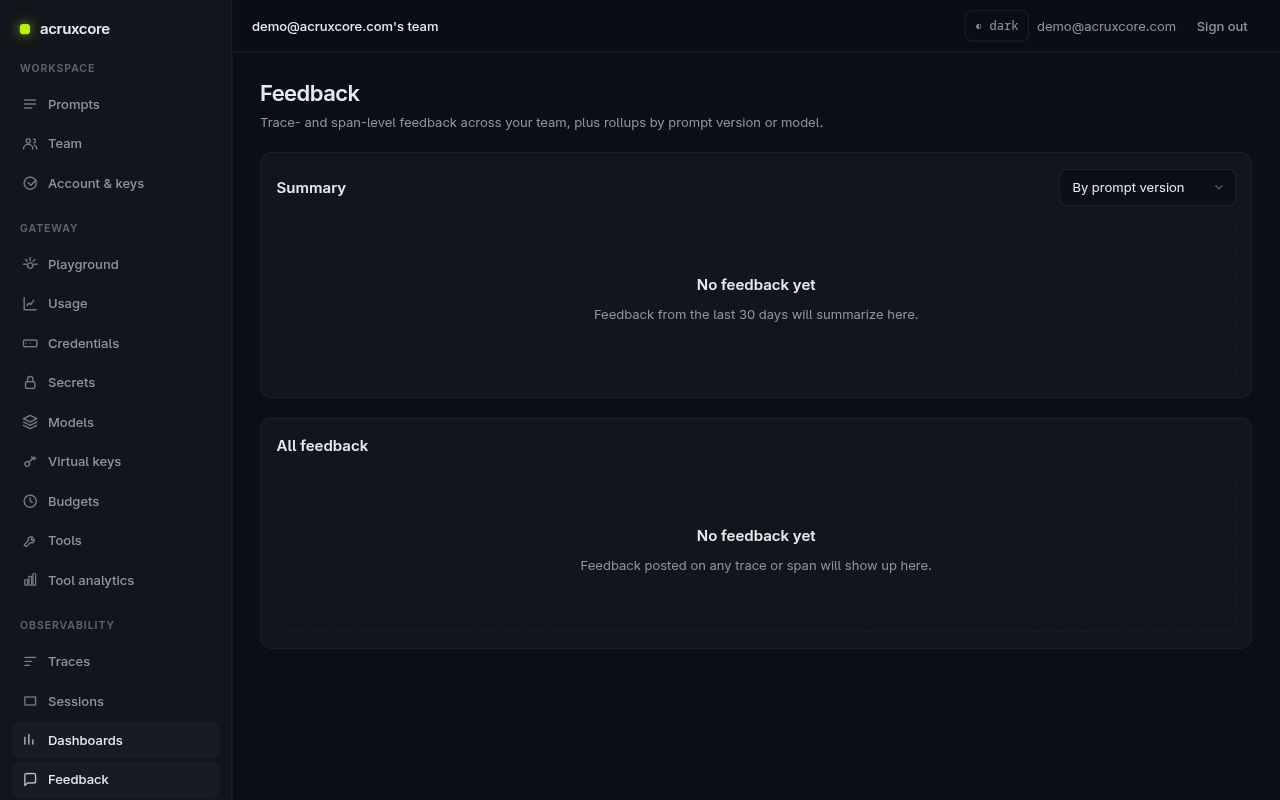
Your app can report feedback too, so a thumbs-down in your own UI lands here without
anyone opening the dashboard. The trace id comes back from the call you are rating:
the SDK returns it as result.gateway.traceId (result.trace_id from a tool loop),
and a raw HTTP call reads it from the x-gateway-trace-id response header — see
chat, stream, and collect feedback with the SDK
for the full round trip. source records who the rating came from — end_user for
your app's users, developer for your own team; it defaults to user.
- Node (SDK)
- Python (SDK)
- curl
- Python (requests)
import AcruxCore from '@acruxcoreai/sdk';

const hub = new AcruxCore();

const feedback = await hub.traces.submitFeedback({
  traceId: '<trace-id>',
  rating: -1,
  comment: 'Too formal — be warmer',
  source: 'end_user',
});
console.log(feedback.id);
from acruxcore import AcruxCore

hub = AcruxCore()

feedback = await hub.traces.submit_feedback(
    "<trace-id>",
    rating=-1,
    comment="Too formal — be warmer",
    source="end_user",
)
print(feedback.id)
curl -X POST "$ACRUXCORE_BASE_URL/traces/<trace-id>/feedback" \
  -H "Authorization: Bearer $ACRUXCORE_API_KEY" \
  -H "Content-Type: application/json" \
  -d '{"rating": -1, "comment": "Too formal — be warmer", "source": "end_user"}'
{
"id": "<feedback-id>",
"traceId": "<trace-id>",
"spanId": null,
"rating": -1,
"label": null,
"comment": "Too formal — be warmer",
"source": "end_user",
"createdBy": "<user-id>",
"createdAt": "2026-09-14T07:34:31.627Z",
"updatedAt": "2026-09-14T07:34:31.627Z"
}
import os, requests

base, key = os.environ["ACRUXCORE_BASE_URL"], os.environ["ACRUXCORE_API_KEY"]
h = {"Authorization": f"Bearer {key}"}

feedback = requests.post(f"{base}/traces/<trace-id>/feedback", headers=h, json={
    "rating": -1,
    "comment": "Too formal — be warmer",
    "source": "end_user",
}).json()
print(feedback["id"])
2. Build a dataset
A dataset is a frozen set of example inputs, each with its own criteria: the
prompt variables to render, plus what a judge should check in the reply.
Evaluations → Datasets lists them, and a new workspace starts empty.
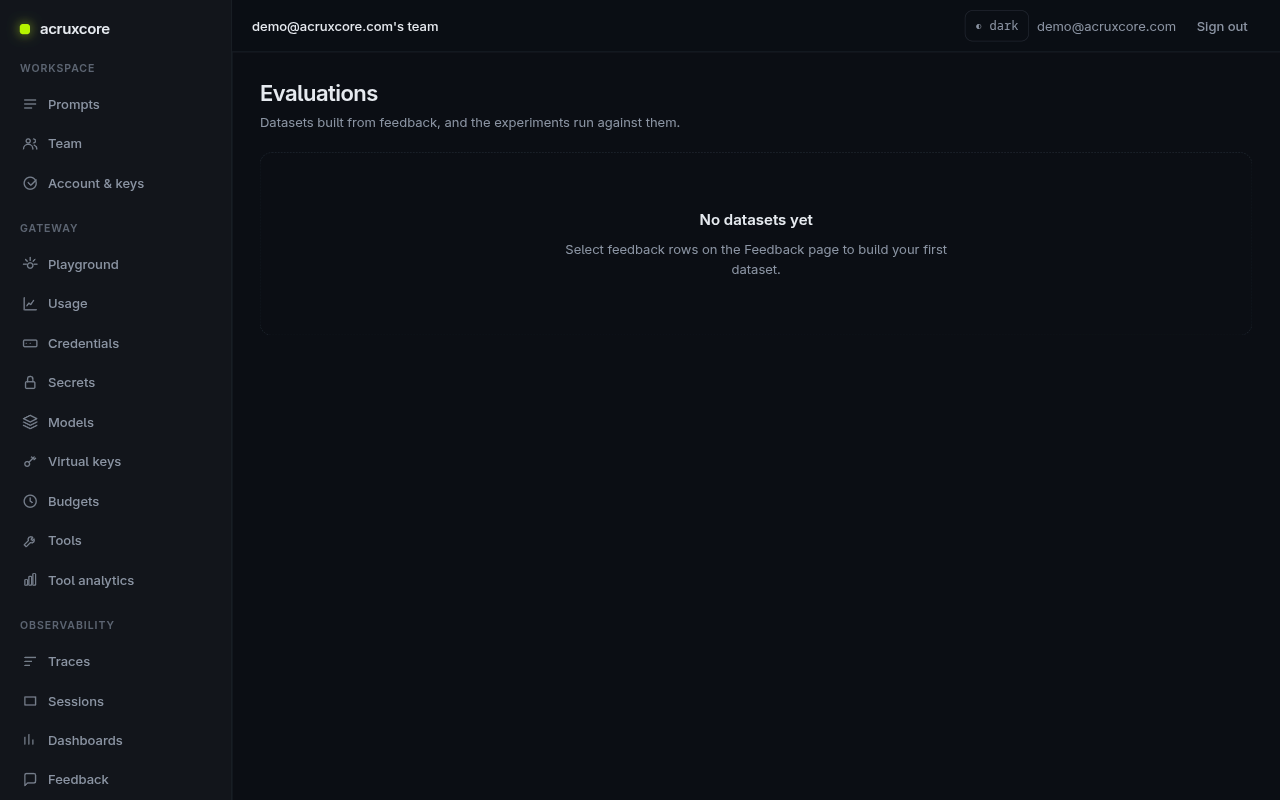
A dataset can be filled in three ways. Steps 3 to 5 work the same for all three.
- From feedback — select the feedback rows from step 1.
- From a file — import a test set you already keep in a CSV or JSON file.
- By hand — type each row in the dashboard.
From feedback
Select feedback rows and turn them into a dataset. Each row brings the variables the call was made with, and its comment becomes the example's criteria.
- Node (SDK)
- Python (SDK)
- curl
- Python (requests)
import AcruxCore from '@acruxcoreai/sdk';

const hub = new AcruxCore();

const dataset = await hub.datasets.buildFromFeedback({
  name: 'unhappy-support-replies',
  overallFeedback: 'Warm, concise, always end with a next step',
  feedbackIds: ['<feedback-id-1>', '<feedback-id-2>'],
});
console.log(dataset.id, dataset.exampleCount);
from acruxcore import AcruxCore

hub = AcruxCore()

dataset = await hub.datasets.build_from_feedback(
    name="unhappy-support-replies",
    overall_feedback="Warm, concise, always end with a next step",
    feedback_ids=["<feedback-id-1>", "<feedback-id-2>"],
)
print(dataset.id, dataset.example_count)
curl -X POST "$ACRUXCORE_BASE_URL/datasets/from-feedback" \
  -H "Authorization: Bearer $ACRUXCORE_API_KEY" \
  -H "Content-Type: application/json" \
  -d '{
    "name": "unhappy-support-replies",
    "overall_feedback": "Warm, concise, always end with a next step",
    "feedback_ids": ["<feedback-id-1>", "<feedback-id-2>"]
  }'
{ "id": "<dataset-id>", "name": "unhappy-support-replies", "example_count": 2, "skipped": [] }
import os, requests

base, key = os.environ["ACRUXCORE_BASE_URL"], os.environ["ACRUXCORE_API_KEY"]
h = {"Authorization": f"Bearer {key}"}

dataset = requests.post(f"{base}/datasets/from-feedback", headers=h, json={
    "name": "unhappy-support-replies",
    "overall_feedback": "Warm, concise, always end with a next step",
    "feedback_ids": ["<feedback-id-1>", "<feedback-id-2>"],
}).json()
print(dataset["id"], dataset["example_count"])
From a file
In the dashboard, New dataset creates an empty dataset. On that dataset, open
Add example and choose the Import file tab. In a CSV, each column becomes a
prompt variable, and a column named criteria holds the judge criteria:
question,customer_tier,criteria
How long do I have to return an item?,free,"Says 30 days from delivery, and that items must be unused."
Can I get a refund on an annual plan?,pro,Quotes the 14-day refund window for annual plans.
A JSON file is an array of objects in the same shape, and it may also carry a
history of earlier chat turns. The tab shows a preview and lists any row with a
problem by its row number. It imports up to 500 rows at a time.
From code, create the dataset and send the rows in one call. The call is all-or-nothing: if one row is invalid, nothing is written and the error names the row.
- Node (SDK)
- Python (SDK)
- curl
- Python (requests)
const dataset = await hub.datasets.create({ name: 'support-test-set' });

const result = await hub.datasets.addExamples(dataset.id, [
  { input: { question: 'How long do I have to return an item?' }, criteria: 'Says 30 days from delivery, and that items must be unused.' },
  { input: { question: 'Can I get a refund on an annual plan?' }, criteria: 'Quotes the 14-day refund window for annual plans.' },
]);
console.log(result); // { added: 2, exampleCount: 2 }
dataset = await hub.datasets.create("support-test-set")

result = await hub.datasets.add_examples(dataset.id, [
    {"input": {"question": "How long do I have to return an item?"}, "criteria": "Says 30 days from delivery, and that items must be unused."},
    {"input": {"question": "Can I get a refund on an annual plan?"}, "criteria": "Quotes the 14-day refund window for annual plans."},
])
print(result.added, result.example_count)  # 2 2
curl -X POST "$ACRUXCORE_BASE_URL/datasets/<dataset-id>/examples/bulk" \
  -H "Authorization: Bearer $ACRUXCORE_API_KEY" \
  -H "Content-Type: application/json" \
  -d '{"examples": [
    {"input": {"question": "How long do I have to return an item?"}, "criteria": "Says 30 days from delivery, and that items must be unused."},
    {"input": {"question": "Can I get a refund on an annual plan?"}, "criteria": "Quotes the 14-day refund window for annual plans."}
  ]}'
{ "added": 2, "example_count": 2 }
dataset = requests.post(f"{base}/datasets", headers=h, json={"name": "support-test-set"}).json()

result = requests.post(f"{base}/datasets/{dataset['id']}/examples/bulk", headers=h, json={
    "examples": [
        {"input": {"question": "How long do I have to return an item?"}, "criteria": "Says 30 days from delivery, and that items must be unused."},
        {"input": {"question": "Can I get a refund on an annual plan?"}, "criteria": "Quotes the 14-day refund window for annual plans."},
    ],
}).json()
print(result["added"], result["example_count"])  # 2 2
The full request and error shapes are in the API reference.
By hand
New dataset creates an empty dataset, and Add example on it writes one row: the prompt variables, plus the criteria a judge should check. Use this path for a prompt that has no traffic yet and no test file.
3. Create and run an experiment
An experiment pairs a dataset with a prompt under test and an explicit grid to
sweep: one or more version_ids × one or more models. Creating it is one call;
starting a run is another (it returns 202 queued and hands off to the worker).
- Node (SDK)
- Python (SDK)
- curl
- Python (requests)
const experiment = await hub.experiments.create({
  datasetId: '<dataset-id>',
  promptId: '<prompt-id>',
  name: 'support-reply v2 vs v1',
  versionIds: ['<v2-version-id>'],
  models: ['support-model'],
});

const run = await hub.experiments.startRun(experiment.id);
console.log(run.runId, run.status); // -> queued
experiment = await hub.experiments.create(
    dataset_id="<dataset-id>",
    prompt_id="<prompt-id>",
    name="support-reply v2 vs v1",
    version_ids=["<v2-version-id>"],
    models=["support-model"],
)

run = await hub.experiments.start_run(experiment.id)
print(run.run_id, run.status)  # -> queued
# Create the experiment
curl -X POST "$ACRUXCORE_BASE_URL/experiments" \
  -H "Authorization: Bearer $ACRUXCORE_API_KEY" \
  -H "Content-Type: application/json" \
  -d '{
    "dataset_id": "<dataset-id>",
    "prompt_id": "<prompt-id>",
    "name": "support-reply v2 vs v1",
    "version_ids": ["<v2-version-id>"],
    "models": ["support-model"]
  }'
# → { "id": "<experiment-id>", ... }
# Add "alias": "staging" to compare against an alias other than the default
# (production if it exists, otherwise the prompt's latest committed version).

# Start a run (async)
curl -X POST "$ACRUXCORE_BASE_URL/experiments/<experiment-id>/runs" \
  -H "Authorization: Bearer $ACRUXCORE_API_KEY"
# → { "run_id": "<run-id>", "status": "queued" }
experiment = requests.post(f"{base}/experiments", headers=h, json={
    "dataset_id": dataset["id"],
    "prompt_id": "<prompt-id>",
    "name": "support-reply v2 vs v1",
    "version_ids": ["<v2-version-id>"],
    "models": ["support-model"],
}).json()

run = requests.post(f"{base}/experiments/{experiment['id']}/runs", headers=h).json()
print(run["run_id"], run["status"])  # -> queued
When a prompt is under test, AcruxCore also adds an automatic baseline cell, so you
always compare your candidate against something rather than nothing — by default that's the
prompt's production alias, falling back to its latest committed version if there's no
production alias yet. Pick a different alias in the dashboard's Baseline alias field (or
pass "alias": "staging" over the API) if you want the comparison to be against staging,
dev, or any other alias instead.
If the dataset's examples were captured against a different prompt than the one under test here, the run still starts — AcruxCore just adds a warning to the response and the run page so you know the comparison might not be apples-to-apples. It never blocks the run.
4. Read the report
Poll the run until it finishes, then read the report — per-cell scores across the dataset, so you can see whether v2 beat v1 (or the baseline).
- Node (SDK)
- Python (SDK)
- curl
const detail = await hub.runs.get('<run-id>'); // status: queued → running → completed

const report = await hub.runs.getReport('<run-id>'); // per-cell scores
detail = await hub.runs.get("<run-id>")  # status: queued → running → completed

report = await hub.runs.get_report("<run-id>")  # per-cell scores
curl "$ACRUXCORE_BASE_URL/runs/<run-id>" \
  -H "Authorization: Bearer $ACRUXCORE_API_KEY"          # status: queued → running → completed

curl "$ACRUXCORE_BASE_URL/runs/<run-id>/report" \
  -H "Authorization: Bearer $ACRUXCORE_API_KEY"          # per-cell scores
In the web app, Evaluations → Runs lists every run your team has made — newest first, with each run's score, best variant and duration — and each row opens the same report as a comparison grid. The same history is available over the API:
- Node (SDK)
- Python (SDK)
- curl
const { data: recentRuns, total } = await hub.runs.list({ limit: 20 });

const datasetRuns = await hub.runs.list({ datasetId: '<dataset-id>' });
recent = await hub.runs.list(limit=20)

dataset_runs = await hub.runs.list(dataset_id="<dataset-id>")
curl "$ACRUXCORE_BASE_URL/runs?limit=20" \
  -H "Authorization: Bearer $ACRUXCORE_API_KEY"           # newest first

curl "$ACRUXCORE_BASE_URL/runs?dataset_id=<dataset-id>" \
  -H "Authorization: Bearer $ACRUXCORE_API_KEY"           # only this dataset's runs
5. Use this as a gate before you promote
The automatic baseline cell from step 3 is what makes this a regression
gate, not just a comparison: every run already scores your candidate
version and whatever the baseline alias currently serves (production by
default), side by side, on the same dataset. Read the report before
promoting a version, not after:
- Candidate clearly beats baseline → promote it, per Version a prompt.
- Candidate ties or loses on one or more examples → that's a regression the
dataset caught before a real user did. Don't promote; either fix the
version or revisit the dataset's
criteriaif the loss looks like a scoring artifact rather than a real quality drop.
Because the dataset is frozen (built once in step 2), the comparison is stable — re-running the same experiment against a later candidate version still checks it against the same examples and the same criteria, so results are comparable across runs over time.
What's next
- Let the platform write the next version instead of comparing ones you wrote — see Improve a prompt from feedback.
- Promote the winning version to
production— see Version a prompt. - Full field reference: Datasets and Experiments in the API Reference.