Run your app as an experiment
What you'll build: two runs of a small support-ticket app, scored by two checks written in code, and a per-example comparison that shows which tickets the second version fixed.
How a local experiment works
An evaluation does two jobs for every example in a dataset. First it produces an output. Then it scores that output.
In an ordinary experiment, AcruxCore does both jobs on the server. The server can only run a prompt that is stored in AcruxCore. An LLM judge then scores each answer.
An app is often several steps. It may call a model, run plain code on the answer, and then call a tool. Only your own process can run that code. A local experiment splits the jobs this way:
| Job | Who does it | Where |
|---|---|---|
| Run the app on each example | Your code, called by the SDK | Your machine |
| Score each output | Your scorer functions, called by the SDK | Your machine |
| Store outputs, scores and traces | AcruxCore | The server |
| Show and compare runs | AcruxCore | The dashboard |
One SDK call starts the whole process: experiments.run_local in Python, or
experiments.runLocal in Node. You give it a dataset, your app function and your scorers. The SDK then:
- asks the server to create a run, and gets the dataset's examples back;
- calls your app once per example, several examples at a time;
- calls each scorer on the app's output;
- uploads the outputs and scores to the server in batches;
- tells the server the run is finished, and returns a summary with a link to the run.
The run then appears in the run list, next to runs that the server ran. To open the list, click Datasets under Evaluations in the sidebar, then click the Runs tab at the top of the page. Click a run to open its run report. The report of a local run has the same parts as the report of any other run: the scores, a panel with every example, and a Compare per example button.
The app in this guide
The app triages a support ticket in two steps. First, a model call classifies the ticket as
billing, bug, question or account. Then plain code routes the category to a team.
There are two versions of the classification prompt. Version 1 forgets the account
category. Version 2 lists all four categories. The guide runs both versions and finds the
tickets whose result changed.
PROMPTS = {
    "v1": 'Classify the support ticket as billing, bug or question. Reply with JSON: {"category": "..."}',
    "v2": 'Classify the support ticket as billing, bug, question or account. Reply with JSON: {"category": "..."}',
}
ROUTES = {"billing": "finance", "bug": "engineering", "question": "support", "account": "support"}
The full script for each language is in
scripts/guides/run-your-app-as-an-experiment.
Clone the repository, or download that folder, and keep its data/ folder next to
python/ and typescript/. The snippets below are taken from the scripts. Each script
reads the version from its first argument, so v1 or v2 picks the prompt.
The app asks the model for JSON (response_format set to json_object). Pick a model that
supports JSON mode. With a model that does not, the app may get no category back and file
the ticket as unknown.
Before you start
You need:
- an API key from an account with the
editorrole or above (roles); - a model registered under Gateway → Models. The Quickstart sets up both the key and the model;
- version 0.18.0 or later of the SDK.
- Python
- Node
pip install acruxcore
export ACRUXCORE_API_KEY=acx_sk_...
export ACRUXCORE_BASE_URL=https://acruxcore.com/api/v1
export ACRUXCORE_MODEL=gpt-4o-mini   # a model name from Gateway → Models
The client reads ACRUXCORE_API_KEY and ACRUXCORE_BASE_URL. The script reads
ACRUXCORE_MODEL. Every snippet below runs inside one async with block:
import asyncio, json, os, sys
from pathlib import Path
from acruxcore import AcruxCore

MODEL = os.getenv("ACRUXCORE_MODEL", "gpt-4o-mini")
VERSION = sys.argv[1] if len(sys.argv) > 1 else "v1"

async def main():
    async with AcruxCore() as hub:
        ...  # the steps below

asyncio.run(main())
npm install @acruxcoreai/sdk
export ACRUXCORE_API_KEY=acx_sk_...
export ACRUXCORE_BASE_URL=https://acruxcore.com/api/v1
export ACRUXCORE_MODEL=gpt-4o-mini   # a model name from Gateway → Models
The client reads ACRUXCORE_API_KEY and ACRUXCORE_BASE_URL. The script reads
ACRUXCORE_MODEL. The script is an ES module (.mjs), so it can use await at the top
level:
import { readFile } from 'node:fs/promises';
import { acruxcore } from '@acruxcoreai/sdk';

const MODEL = process.env.ACRUXCORE_MODEL ?? 'gpt-4o-mini';
const VERSION = process.argv[2] ?? 'v1';
const hub = new acruxcore();
Step 1 — Put the right answers in the dataset
A code scorer compares the app's output with a reference answer. A dataset example stores
that answer in its expected field. The field is optional and takes any JSON.
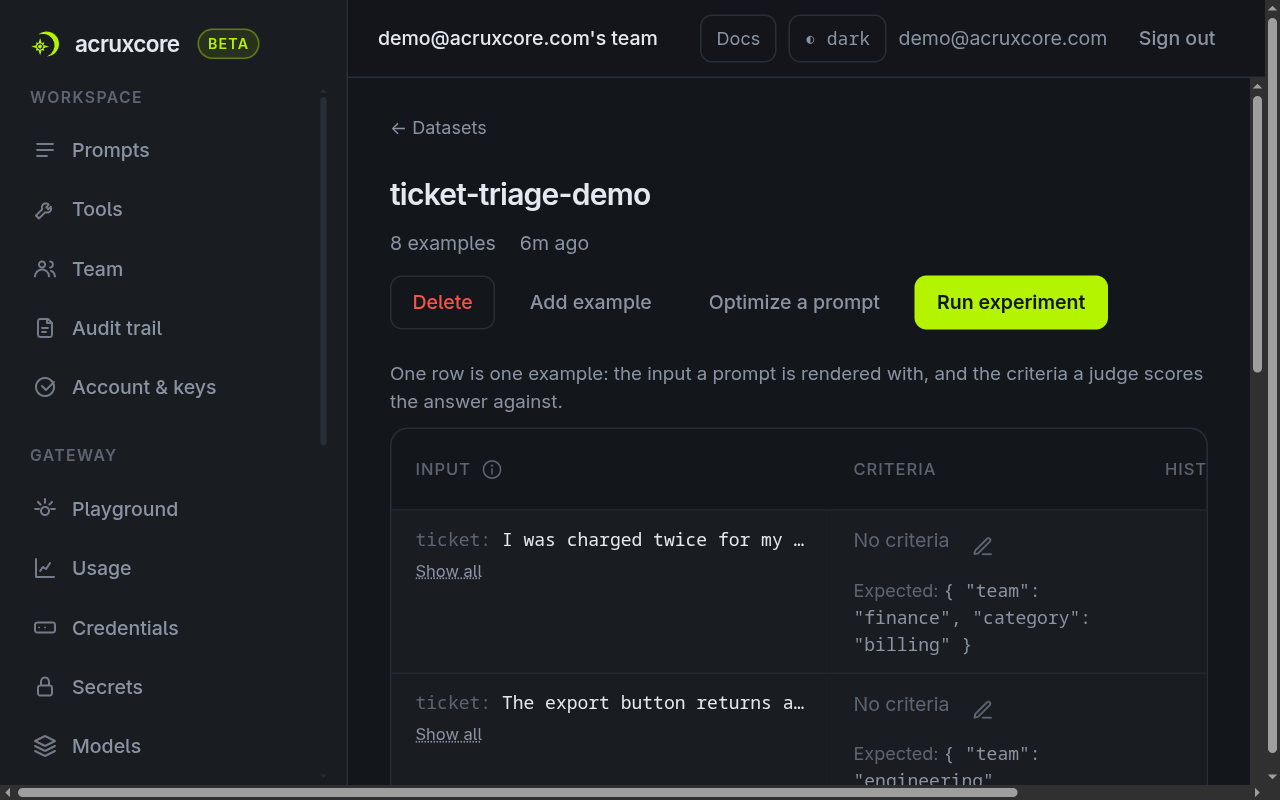
The guide's eight tickets are in
data/tickets.json.
Each ticket has an input, and an expected category and team:
{ "input": { "ticket": "I can't log in. The reset-password email never arrives." },
  "expected": { "category": "account", "team": "support" } }
The script looks for a dataset named ticket-triage-demo. When there is none, it creates the
dataset from that file. So the second run reuses the dataset of the first run.
- Python
- Node
dataset = next((d for d in await hub.datasets.list() if d.name == "ticket-triage-demo"), None)
if dataset is None:
    examples = json.loads((Path(__file__).parent.parent / "data" / "tickets.json").read_text())
    dataset = await hub.datasets.create("ticket-triage-demo")
    await hub.datasets.add_examples(dataset.id, examples)
let dataset = (await hub.datasets.list()).find((d) => d.name === 'ticket-triage-demo');
if (!dataset) {
  const examples = JSON.parse(await readFile(new URL('../data/tickets.json', import.meta.url), 'utf8'));
  dataset = await hub.datasets.create({ name: 'ticket-triage-demo' });
  await hub.datasets.addExamples(dataset.id, examples);
}
You can also type an expected value in the dashboard. Open the dataset, click
Add example, choose Manual, and fill in Expected. A CSV file imports a column
named expected the same way.
Step 2 — Write the app function
The app function is the code you want to test. The SDK calls it once per example and passes
the example's input. The function may take a second argument, ctx, which describes the
example. The function returns your app's answer, which must be JSON-serializable.
ctx.trace holds the id of a trace that the SDK made for this example. Pass ctx.trace to
each gateway call, and the model calls are recorded in that trace. In the dashboard, each
example's row has a link to the trace.
ctx also carries the example's expected value and its criteria. An example built from a
multi-turn session also has ctx.history, the earlier turns. Pass them to your app if it
needs the conversation so far.
- Python
- Node
async def triage(input, ctx):
    reply = await hub.gateway.chat(
        model=MODEL,
        messages=[{"role": "system", "content": PROMPTS[VERSION]},
                  {"role": "user", "content": input["ticket"]}],
        response_format={"type": "json_object"},
        trace=ctx.trace,
    )
    category = json.loads(reply.content or "{}").get("category", "unknown")
    return {"category": category, "team": ROUTES.get(category, "support")}
A plain def works too. The SDK runs a sync function in a worker thread.
async function triage(input, ctx) {
  const reply = await hub.gateway.chat({
    model: MODEL,
    messages: [{ role: 'system', content: PROMPTS[VERSION] }, { role: 'user', content: input.ticket }],
    responseFormat: { type: 'json_object' },
    trace: ctx.trace,
  });
  const category = JSON.parse(reply.content ?? '{}').category ?? 'unknown';
  return { category, team: ROUTES[category] ?? 'support' };
}
If the app throws an error on an example, the SDK records the error for that example. The other examples still run.
Step 3 — Write the scorers
A scorer is a function that grades one output. It can read the output and the example's
expected value. It can also read the example's input and its criteria. The
criteria is a text rubric that an example may carry for an LLM judge. A scorer returns one
of these:
TrueorFalse, for a pass or a fail;- a number from 0 to 1;
- an object with a
scorefrom 0 to 1, and optionallypassedandreason.
The function's name becomes the score's name. A bare number passes when it is 0.5 or more.
The object form can set passed itself. The dashboard multiplies each score by 100, so it
uses the same 0 to 100 scale as the LLM judge.
- Python
- Node
def category_exact(output, expected):
    return output["category"] == expected["category"]

def team_exact(output, expected):
    ok = output["team"] == expected["team"]
    return {"score": 1 if ok else 0, "reason": None if ok else f"expected {expected['team']}"}
The Python SDK passes each scorer only the arguments that the scorer names.
category_exact names output and expected, so it gets those two.
function categoryExact({ output, expected }) {
  return output.category === expected.category;
}

function teamExact({ output, expected }) {
  const ok = output.team === expected.team;
  return { score: ok ? 1 : 0, reason: ok ? null : `expected ${expected.team}` };
}
If a scorer throws an error, that score has no value for the example, and the error is stored as its reason. The other scores for the example are kept.
Step 4 — Run version 1
- Python
- Node
result = await hub.experiments.run_local(
    dataset.id,
    task=triage,
    scorers=[category_exact, team_exact],
    name="v1",       # the run's label in the dashboard
    model=MODEL,     # optional label shown next to the name; default "local"
    concurrency=4,   # examples that run at the same time (the default)
)
print(result.url)
const result = await hub.experiments.runLocal(dataset.id, {
  task: triage,
  scorers: [categoryExact, teamExact],
  name: 'v1', // the run's label in the dashboard
  model: MODEL, // optional label shown next to the name; default "local"
  concurrency: 4, // examples that run at the same time (the default)
});
console.log(result.url);
Run the full script from its python/ or typescript/ folder, with v1 as the
argument. Besides the snippet above, the full script prints each score's summary and every
ticket that failed a score. Model answers vary between runs, so your numbers may differ.
- Python
- Node
python run_experiment.py v1
run 1751ffdf-cfcc-490b-891a-98ba359ec1e7 succeeded
  category_exact mean 0.75  passed 6/8
  team_exact     mean 0.88  passed 7/8
  ✗ I can't log in. The reset-password email never arrives.  ->  {"category":"bug","team":"engineering"}
  ✗ Please change the email address on my account to ana@example  ->  {"category":"question","team":"support"}
open: http://localhost:5596/evaluations/runs/1751ffdf-cfcc-490b-891a-98ba359ec1e7
node run_experiment.mjs v1
run 8d7ee3a6-2df7-49f1-ab82-1eb0849bfc5d succeeded
  categoryExact  mean 0.75  passed 6/8
  teamExact      mean 1.00  passed 8/8
  ✗ I can't log in. The reset-password email never arrives.  ->  {"category":"question","team":"support"}
  ✗ Please change the email address on my account to ana@example  ->  {"category":"question","team":"support"}
open: http://localhost:5596/evaluations/runs/8d7ee3a6-2df7-49f1-ab82-1eb0849bfc5d
These runs used a local AcruxCore, so the links point at localhost. On acruxcore.com
the link opens your team's run page.
Version 1 has no account category, so both account tickets failed the category check in
both runs. The team check came out differently:
- In the Node run, the model filed both tickets as
question. The routing code sendsquestionto support, and support is the right team for account tickets. SoteamExactpassed both tickets, although their category was wrong. - In the Python run, the model filed the login ticket as
bug. The routing code sent that ticket to engineering, soteam_exactfailed it too.
Two named scores show this difference. One combined score would hide it.
The screenshots below come from the Node run, so the scorers have their Node names.
Step 5 — Read the run in the dashboard
Open the link that the script printed. You can also open the run from the Runs tab, as described in How a local experiment works. The run page shows the first scorer as the run's main score. Below the main score, a Scores table lists every scorer:
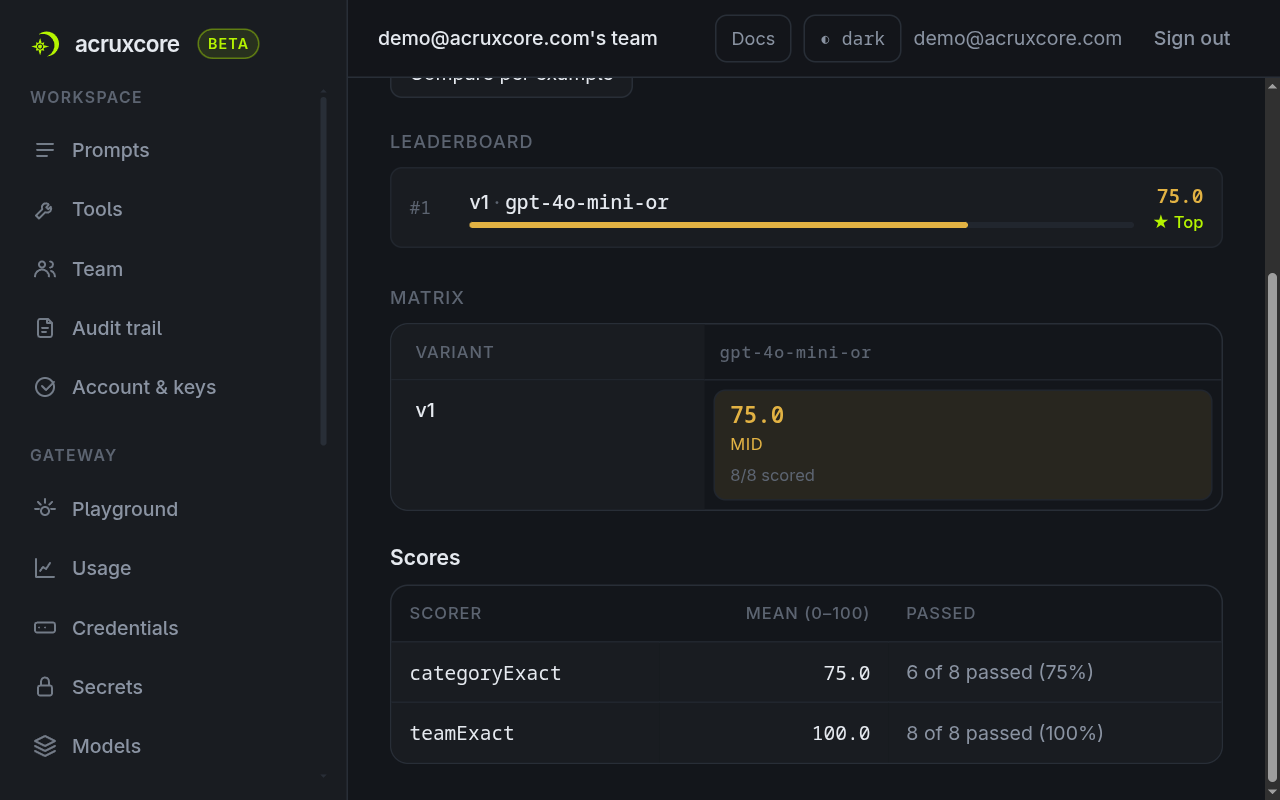
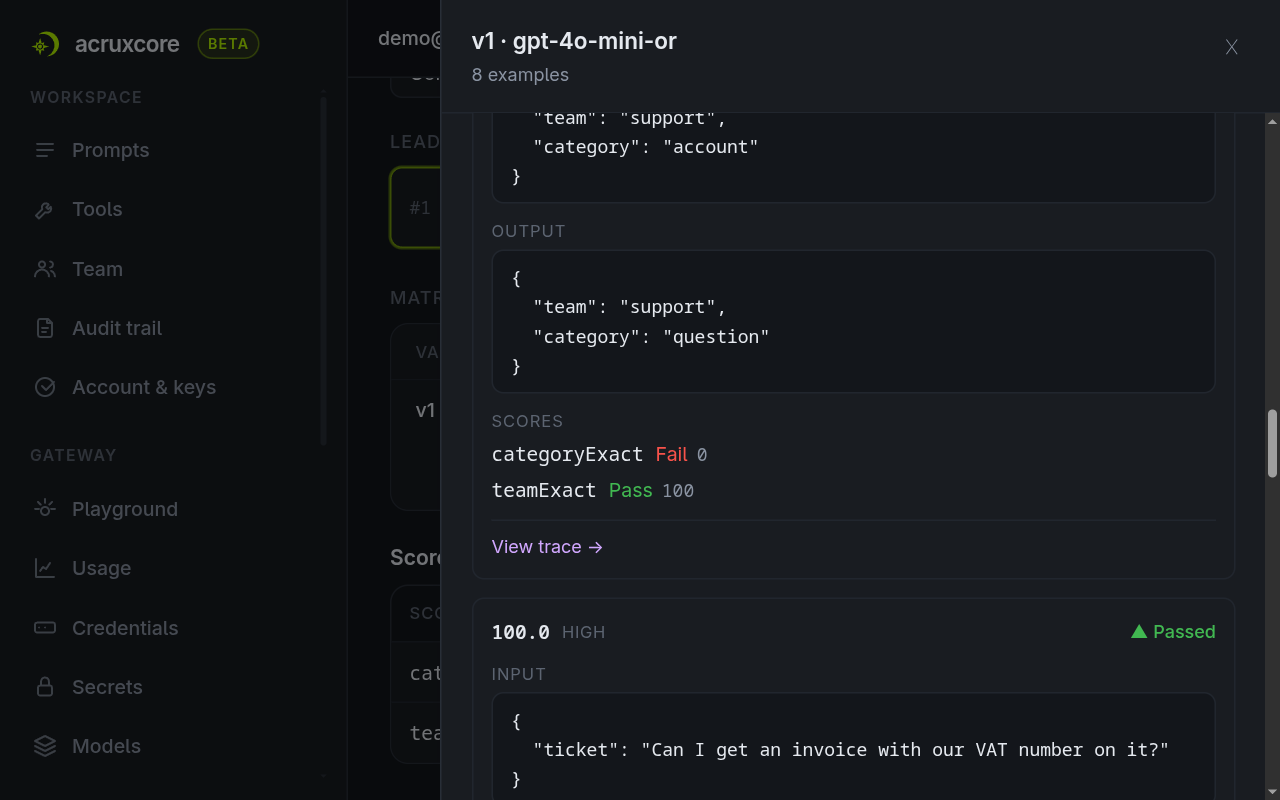
Above the Scores table, the Matrix section has one tile with the run's score. Click
that tile to open a panel with every example. For each example
the panel shows the input, the expected value, the app's output, and each score with its
reason. The View trace link at the bottom of an example opens its trace. The trace holds
one span for the app call and one span for each model call made with ctx.trace.
To make another scorer the main score, pass primary_score="team_exact" in Python or
primaryScore: 'teamExact' in Node. The name must be a score that every scored example has.
If an example lacks it, the upload is refused and the run stops with an error that lists the
scores the example does have.
Step 6 — Run version 2 and compare per example
Run the script again with v2:
- Python
- Node
python run_experiment.py v2
run e65be0f0-98dc-428d-af38-317db6c03b1f succeeded
  category_exact mean 1.00  passed 8/8
  team_exact     mean 1.00  passed 8/8
open: http://localhost:5596/evaluations/runs/e65be0f0-98dc-428d-af38-317db6c03b1f
node run_experiment.mjs v2
run b74a3de4-4ee0-4e99-a64b-1cfe79535e50 succeeded
  categoryExact  mean 1.00  passed 8/8
  teamExact      mean 1.00  passed 8/8
open: http://localhost:5596/evaluations/runs/b74a3de4-4ee0-4e99-a64b-1cfe79535e50
Open the version 1 run report. Compare per example is a button at the top right, on the same line as the Run report title. The example panel from step 5 opens over the right side of the page and hides the button. Close the panel first if it is open.
The comparison has a base run and a target run. The base is the run you opened. By default the target is the newest other run on the same dataset. In this guide, the target is the version 2 run. The Base and Target pickers choose other runs.
You do not create the comparison yourself. Each time you open the page, AcruxCore builds the comparison from the results that the two runs stored. Any two runs on the same dataset can be compared, whether the SDK or the server ran them.
The page compares each example's pass or fail result, not its score. The page puts every example in one of five groups:
| Group | The example… |
|---|---|
| Improved | failed in the base run and passed in the target run |
| Regressed | passed in the base run and failed in the target run |
| Unchanged | passed in both runs, or failed in both runs |
| Unscored | has a result in both runs, but one of the two results has no pass or fail |
| Missing | has no result in one of the runs |
An example that passes in both runs is Unchanged, even when its score went up.
Above the table, a row of filter buttons shows how many examples each group holds. The table opens on the Changed filter, which shows the Improved and Regressed examples:
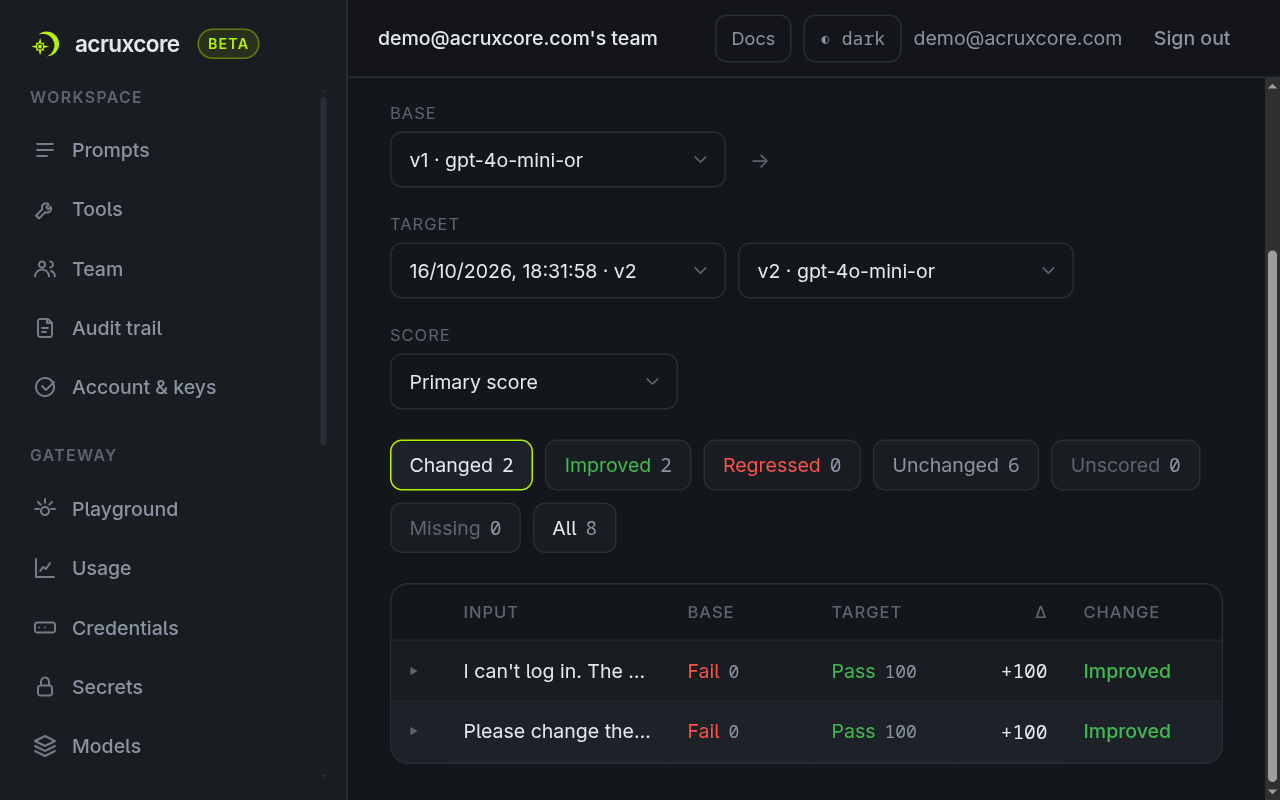
Click the All filter to see every example, including the Unchanged ones. The table then shows each example's score in both runs, and the difference in the Δ column.
The Score picker sets which scorer's pass or fail is compared. On categoryExact, the
two account tickets improved. On teamExact, no ticket changed in the Node runs, because both
versions sent every ticket to the right team.
What to read next
- Local experiments API lists the three endpoints the SDK calls, for a language that has no SDK.
- Evaluate a prompt against a dataset runs an experiment on the server, to compare prompt versions and models without writing code.